
Export your data
Download a project, your Inbox or a workspace as Markdown, CSV or XML, choose whether completed tasks come too, and see who can export (there is no import).
Export gives you a file of your tasks to keep or to read in another tool. You can export one project, your Inbox or a whole workspace. It works on every plan, and the file holds only what you can already read.
Export a project, your Inbox or a workspace#
- Open what you want to export:
- For a project, click the ⋯ menu beside its name and choose Export.
- For your Inbox, press Export in the Inbox header.
- For a workspace, click the ⋯ menu at the top of the workspace page and choose Export.
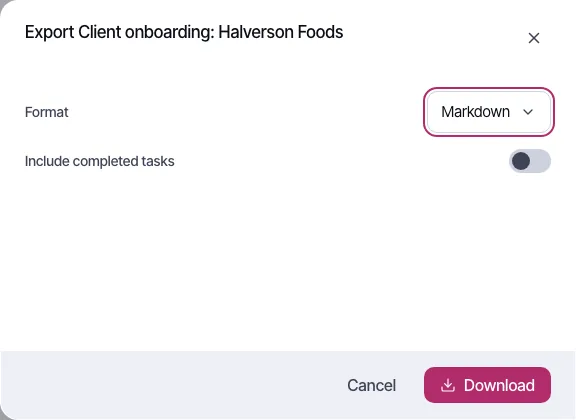
- In the Export panel, choose a Format: Markdown, CSV or XML. Markdown is preselected.
- Turn on Include completed tasks if you want them. It is off by default, so a file holds open tasks only.
- Press Download.
The file lands in your browser's downloads, named after the project, the Inbox or the workspace. If the export fails, the panel stays open and says "Could not export. Try again." If the project was removed in the meantime, it says the name "is no longer available."
What each format holds#
All three carry the same tasks, with their sections and sub-tasks in order. Archived projects and sections are included and marked as archived.
| Format | What you get | Fields |
|---|---|---|
| Markdown | A readable checklist: a heading for each project and section, a checkbox for each task, the description quoted under it. | Priority (written only when it is p1 to p3), size, reversibility and blast radius, start date, due date, deadline, who it is assigned to, labels. |
| CSV | One row per task, in the column order Todoist's templates use, then Yipadoo's own columns. | Everything above plus author, duration, task ID and parent ID, completed, Game plan and the milestones the task is linked to. |
| XML | Nested elements: workspace, project, section, task, with each sub-task inside its parent. | Title, description, priority, size, reversibility and blast radius, start date, due date with time and repeat, deadline, assignee, labels. |
Reversibility and blast radius are written only when a task in the file has one; in CSV they are the last two columns. CSV carries the most fields. Choose Markdown to read the file, CSV to open it in a spreadsheet or keep every field, and XML when a program will parse it.
A workspace file holds every project you can read in that workspace, each named inside the file. An admin sees all of them, a member sees the projects they have joined or been given, and a guest sees the ones they were added to.
Note: The file holds tasks. It does not hold comments, attached files, time entries, or the people and roles of a workspace.
Who can export#
Anyone who can read a project can export it, on any plan. Anyone in a workspace, guests included, can export the workspace, and the file holds only the projects they can read.
Contacts have their own export. On a contact, business or group page, workspace admins see an Export button that downloads everything about that record as a JSON file. Members do not get it. See Contacts.
There is no single export for everything#
The largest export is one workspace. To take all of your work, export each personal project, your Inbox and each workspace in turn.
Import is not offered#
Yipadoo has no file import. You cannot create tasks or projects from a CSV, Markdown or XML file, including one you exported from Yipadoo. If you want to bring work in, add it with Quick Add or build it in the app.