
Group a plan into Phases
Split a plan into ordered steps, give each an owner, watch progress roll up, and link a Phase to the Goal it delivers.
Needs Pro
A Phase is an ordered step in one project's plan that groups its milestones: Design, Build, Launch. It breaks a long plan into stages and rolls the progress of its milestones into one number. Phases are optional. A plan with only milestones works fine, and you can add Phases when it grows.
Add a Phase#
- Open the project and click Plan.
- Click Add Phase. The small ? next to it, "What is a Phase?", opens the definition in Help.
- Type a Title.
- Optionally fill Why this Phase matters and pick an Accountable person. The default is Unassigned.
- Save.
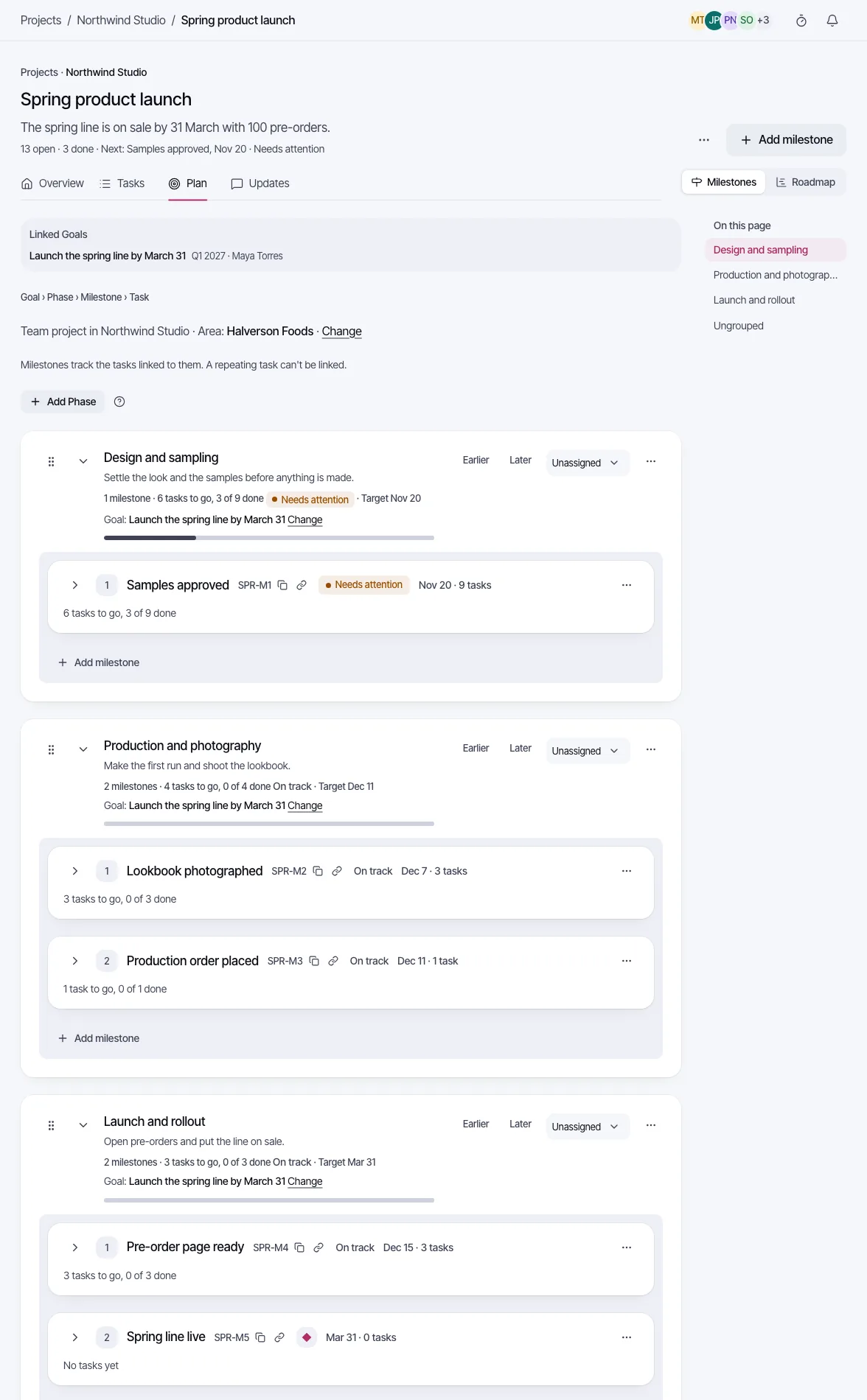
The Phase appears as its own section on the Plan tab.
Put milestones in a Phase#
You have three ways to get a milestone into a Phase:
- Click Add milestone inside the Phase's own section.
- Choose the Phase in the Phase field when you add a milestone, or change that field on an existing card.
- Drag a milestone card into the Phase.
An empty Phase reads "No milestones yet. Add one, drag one in, or pick this Phase on a milestone."
Ungrouped#
Milestones that are not in a Phase sit under Ungrouped. Nothing is lost when you delete a Phase: its milestones move back here.
Order and own your Phases#
Phases run in order, top to bottom.
- Click Earlier or Later to move a Phase, or drag it by its grip.
- Click the title to rename it, and edit its Why this Phase matters text in place.
- Pick the Phase's Accountable person on its section.
- Collapse a Phase when you want to look at the others.
Read the rollup#
A Phase shows a health pill, a percent bar and its dates, all worked out from its milestones. You do not type any of it in. Check off linked tasks and the milestones, the Phase and the project move together. The Overview tab's Plan details card shows the Current Phase and the Next Phase with its target date.
Link a Phase to a Goal#
A Goal is a quarterly outcome. Linking a Phase to it makes the Goal's progress, its Timeline bars and its Final milestone come from real work.
- Under the Phase title, click Link to a Goal. If it is already linked, you see "Goal:" with the Goal's title and a Change button.
- Search with Search Goals and pick one. Goals in the project's Area come first, then Other areas. A Goal that cannot take this Phase is greyed with the reason.
- If the Goal sits in another Area, confirm.
- Set Order inside the Goal: after another Phase, before every other Phase, or first.
- Click Link Phase. Use Unlink to undo it later.
A Phase in a workspace project links to a Goal in that workspace. A Phase in a personal project links to your own personal Goals. If no Goal fits yet, the panel offers Plan a Goal.
You can also start from the other side. On a Goal's page, Add Phase creates a new Phase on a project and links it, and Link project attaches a Phase a project already has. A Goal with no Phases yet says so, and offers both buttons.
Other Phase actions#
Open the Phase's ⋯ menu for Save as template, which keeps the Phase and its milestones for reuse, and Delete Phase. Delete asks first: "Its milestones move back to Ungrouped."
Note: Phases need Pro or a Team seat. On Free, Phases are not available.
Related#
- Milestones covers what goes inside a Phase.
- Goals covers the outcome a Phase delivers.
- Final milestones covers the promise that closes a Goal.
- Templates covers reusing a Phase.