
Phone and computer
Use Yipadoo in a browser on any device, install it as a web app, find your way around a small screen, turn on notifications and know what happens offline.
Yipadoo is a web app. It runs in the browser on a computer, a phone or a tablet, and your work syncs through your account. Phone and tablet apps are planned and will be included in every plan at no extra cost. There is no date yet.
Use it in a browser#
Open the sign-in page in any current browser and sign in. There is nothing to download. You can sign in on as many devices as you like; Settings, Sign-in and security, Sessions lists them (see Sign in and security).
Install it as a web app#
Yipadoo gives the browser what it needs to install it as an app named Yipadoo, with an icon and its own window instead of a browser tab. Use your browser's own option for installing a site as an app or adding it to your home screen. The wording differs by browser, and Yipadoo has no install button of its own.
An installed copy is the same app and the same account.
A small screen#
Below 768 pixels wide, which covers most phones, the left rail gives way to this layout:
- A menu button at the top left opens the left rail as a drawer. The drawer holds your Pinned items, Tools, and the account menu with Profile and settings and Sign out.
- A search button in the top bar opens search.
- A bar along the bottom holds the four main places, My work, Inbox, Projects and Planning, with Add task in the middle. Add task opens Quick Add.
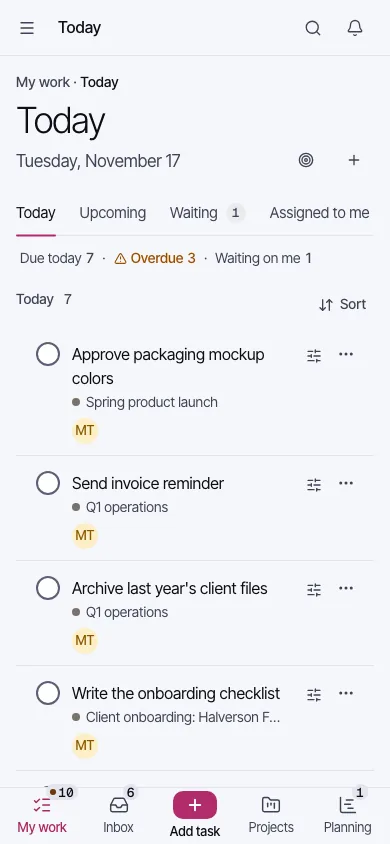
From 768 pixels up, the rail stands beside the page. It shows icons only up to 1023 pixels and the full rail from 1024 pixels. The button at the top of the rail switches between the two, and the browser remembers your choice.
Help leaves its Shortcuts table out on a device with touch alone. See Find your way around.
Notifications#
Reminders can reach you with Yipadoo closed, through your browser's push notifications. Each browser turns them on for itself.
- Open Settings and choose the Notifications tab.
- In Reminders, find Browser push.
- If it reads Off, press Turn on and allow the browser's permission prompt.
The status reads Enabled once this browser is set up. Blocked in this browser means the browser has refused notifications for Yipadoo, so allow them in the browser's settings for the site. Not available here means this browser does not support push.
Push can carry your reminders, the daily summary (if Summary push is on), Team Inbox items (as set under Team Inbox alerts) and mentions. Pressing a notification opens the place it is about; a plain reminder opens Today. Signing out on a device removes that browser's subscription, so it stops showing your account's reminders. See Notifications and reminders.
When the connection drops#
Yipadoo needs a connection to open. It caches nothing for offline use, so it does not start without one.
If the connection drops while the app is open and your browser reports it is offline, a banner reads "Could not reach Yipadoo. Your changes are saved on this device and will sync when you are back." The changes wait in the open tab and send when the connection returns. Keep that tab open until then. Reloading it keeps them, but closing it loses them.
A Reconnecting… notice means the app is retrying on its own. When something goes wrong lists every message.