
Connect an assistant
Connect Claude, ChatGPT or another assistant to Yipadoo, pick what it may do, and change its level or remove it whenever you like.
A connection lets an assistant such as Claude or ChatGPT look at your Yipadoo work, and change it if you allow that. It acts as you, with no more access than you have. You choose its level when you approve it.
Note: The connector is on every plan, Free included, with no usage quota. Only the limits that protect Yipadoo from abuse apply.
Add a connection#
- Open the account menu at the foot of the left rail and choose Profile and settings.
- Open the Connections tab.
- Under Add a connection, press the card for your assistant: Claude, ChatGPT, Gemini, Perplexity, Grok or Custom. Codex, Cursor and GitHub Copilot sit behind Coding assistants.
The card opens a guide headed Connect and the assistant's name. It has the MCP server URL, which is https://app.yipadoo.com/mcp, with a Copy URL button, what the assistant's account needs, the steps, and an Official setup guide link, the better source if a menu has moved.
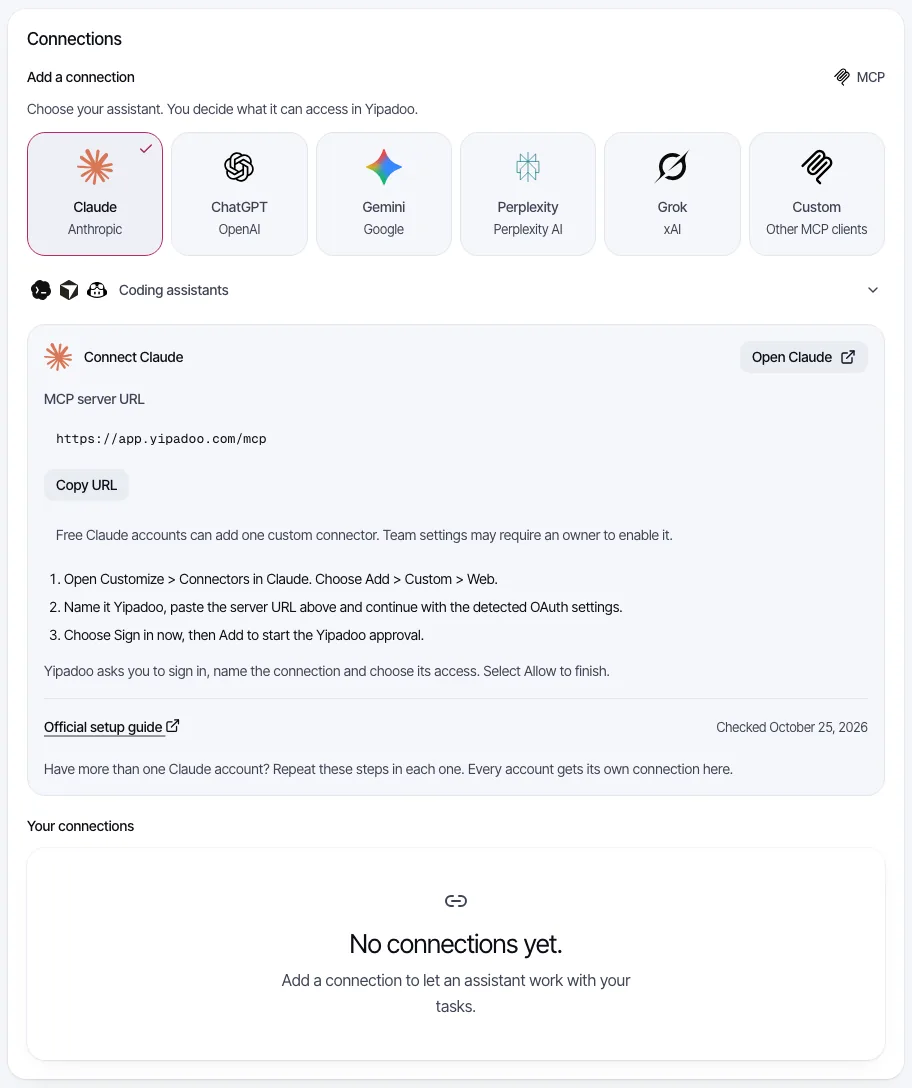
Then finish in the assistant's own app, pasting the address you copied:
- Claude: Customize > Connectors, then Add > Custom > Web. Name it Yipadoo, paste the address, then choose Sign in now and Add.
- ChatGPT: use the web app. Plugins, the plus button, then Add custom MCP server. Choose OAuth, then Create as a plugin.
- Gemini: Settings > Connected Apps, then Add a custom app. It needs a personal Google Account, 18 or over, in the US.
- Perplexity: Plugins, then Add custom, Connector, Add MCP connector, Remote. It needs Pro, Max or Enterprise.
- Grok: Connectors, then New Connector > Custom.
- Codex and Cursor: the guide shows commands (Codex) or settings (Cursor) to copy. GitHub Copilot: in VS Code, run MCP: Add Server, choose HTTP and paste the address. Each ends with a sign-in in your browser.
Approve it#
Your browser opens Yipadoo's approval page. Nothing is connected until you press Allow.
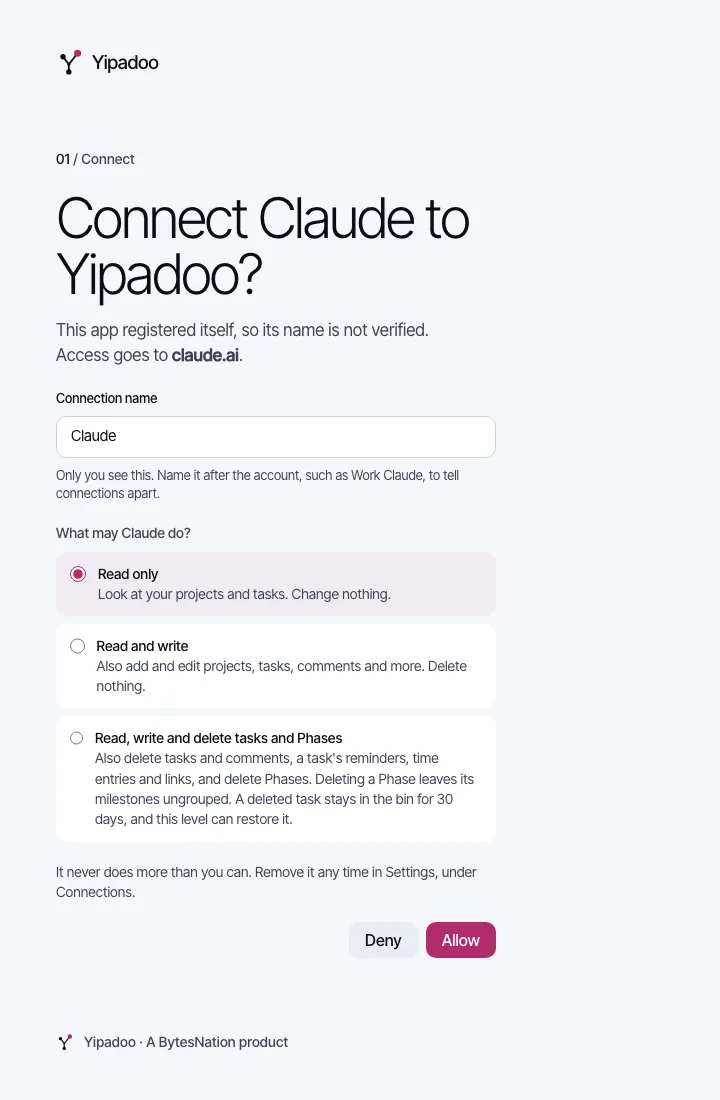
- Read the heading. Under it, Yipadoo says who published the app (or "This app registered itself, so its name is not verified.") and where access goes. An app on your own computer gets a warning.
- Edit Connection name if you like. It labels the connection in your list, so naming it after the account, such as Work Claude, tells connections apart.
- Choose a level under "What may (the assistant) do?".
- If your account has an authenticator app, enter the fresh Authenticator code it asks for. See Sign in and security.
- Press Allow, or Deny to stop.
The four levels#
| Level | What the assistant may do |
|---|---|
| Read only (the default) | Look at your projects and tasks. Change nothing. |
| Propose only | Look at everything. New tasks, task edits, milestones and comments wait for you to approve them on Assistant changes. Decisions, glossary terms and Goal amendments go through as proposals, as at Read and write. Nothing else. |
| Read and write | Also add and edit projects, tasks, comments and more. Delete nothing. |
| Read, write and delete tasks and Phases | Also delete tasks and comments, a task's reminders, time entries and links, and delete Phases. A deleted task waits in the Bin (7 days for personal work on Free, otherwise 30), and this level can restore it. |
Start with Read only while you try an assistant out, or Propose only to see what it would change before anything does. See What an assistant can do for the full list.
Review and remove connections#
Each connection under Your connections shows its name, whether it is "Signed in with Yipadoo" or a "Personal token", its level, when it was added and when it was last used.
- Rename changes the label.
- Change level sets what the connection may do. See Change a connection's level.
- Remove asks "Remove it?". Press Remove to confirm, or Cancel. The assistant's next request is refused, and any changes it proposed at Propose only are withdrawn.
- Your activity marks an assistant's changes "via a connected assistant". See Activity and the Bin.
Change a connection's level#
- Press Change level on the connection. A dialog titled "Change level of" and the connection's name opens.
- Choose a level under "What may (the connection) do?".
- Press Save, or Cancel to keep the level it has.
The new level holds from the assistant's next request. Raising a level asks for a fresh Authenticator code if your account has an authenticator app; lowering one doesn't. Changing the level, either way, leaves any changes waiting on Assistant changes for you to decide.
Tokens for custom assistants#
Custom uses a token you paste into the assistant instead of an approval page.
- Press Custom. The Add Custom panel opens.
- Type a Name, choose a Level, and choose Expires after: 30 days, 90 days (the default) or 1 year.
- Enter an Authenticator code if asked, then press Create token.
- Copy the token with Copy token. Yipadoo shows it only this once. Under it, two blocks already hold the token and the server address. For most MCP clients (mcpServers JSON) has Copy JSON, and For Claude Code has Copy command. Paste the one that fits your assistant. Press Done.
Within 7 days of its end, a token row warns that it stops working. Roll swaps it for a new token, shown once; the old one stops at once.
If a connection fails#
- "You are signed out" or "This request has expired": sign in to Yipadoo, then start again from the assistant.
- The connection is missing from the list: it appears after Allow. If the list says it did not load, reload the page.
- It worked, then stopped: an approval lasts 30 days from the day you pressed Allow, however often the assistant is used, and then it asks you to connect again. A token stops at its expiry; use Roll.
- The assistant refuses the connector: check the account requirements in its guide. Providers can limit custom connectors by plan or workspace.