
Get help and report a bug
Find shortcuts and pages in Help, report a bug or ask for a feature from the account menu, and reach Yipadoo by email for support, privacy and security.
Help is built into the app, and the team answers by email. Use Help to find a page or a shortcut, the report form to say what broke or what you want, and email for your account, a refund or a security concern.
Help and shortcuts#
Open Help one of two ways:
- Open the account menu at the foot of the left rail and choose Help and shortcuts.
- Press
?to open a short Keyboard shortcuts sheet with the keys people use most. Press All of Help on that sheet for the full panel, or?again to close the sheet.
The full panel is titled Help and has three parts, in this order:
- A Shortcuts table lists every keyboard shortcut. A device with touch alone does not show it.
- Pages groups the app's pages under My work, Projects, Planning, Tools and Account, each with a line on what it is and a link where it can be opened.
- Planning terms gives one-line meanings for Goal, Project, Phase, Milestone and the other planning words.
A Report a bug or ask for a feature item at the bottom opens the report form. Press Close help to leave. Keyboard shortcuts has the full list of keys.
Report a bug or ask for a feature#
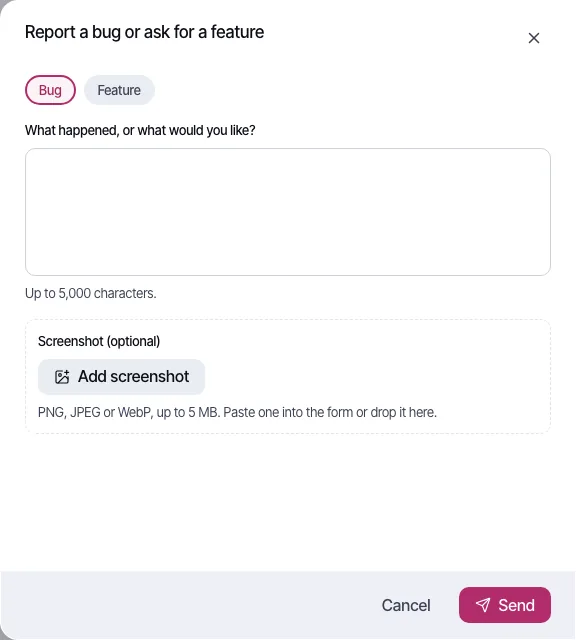
- Open the account menu at the foot of the left rail and choose Report a bug or ask for a feature. You can also open it from the bottom of the Help panel.
- Choose Bug or Feature. Bug is preselected.
- Under What happened, or what would you like? write your report, up to 5,000 characters.
- Optionally add a screenshot: press Add screenshot, paste an image into the form, or drop one on the dashed box. A PNG, JPEG or WebP up to 5 MB works. To take it off, press the X beside its file name.
- Press Send. The panel answers "Thanks, we got it." and a Close button.
You can send 10 reports an hour. Past that the panel says "You have sent 10 reports in the last hour. Try again later." and keeps what you wrote.
What to include#
The app attaches its version, the page you were on and your browser, so skip those. Add what it cannot know:
- What you did, step by step, and what you expected.
- What happened instead, with the wording of any error message.
- Whether it happens every time.
- For a feature request, the job you are trying to get done, not only the feature you picture.
- A screenshot, when the problem is something you can see.
Note: The form confirms receipt and nothing more. It shows no reply or status afterward. If you need an answer about your account, write to support.
Email#
The Site's footer lists these addresses, each for one purpose:
| For | Write to |
|---|---|
| General questions | [email protected] |
| Support | [email protected] |
| Privacy | [email protected] |
| Legal | [email protected] |
| Security | [email protected] |
| Abuse reports | [email protected] |
Write to support for a yearly refund within 14 days, a lost authenticator app, or anything the app cannot do for you. Send account deletion requests to privacy, from the address on the account. Report a security problem to security. The Vulnerability Disclosure page says how.