Control who sees what
Open a project to all members or restrict it to chosen people and groups, check what one person can see, and give guests a view-and-comment seat.
Admins decide who sees each team project. A project is either open to all members or Restricted to the people an admin names. Use Restricted for work that only some of the team should see, such as payroll or a client's confidential brief.
All members and Restricted#
Every team project carries one of two marks:
- All members: admins and members see the project. Guests see it only when they are added.
- Restricted: only admins and the people you add see it.
Admins see every project whatever its mark. A workspace has a default for new projects, set in General under Who can see new projects?, and a project can differ from it. See Workspaces.
To change one project, open the workspace page, find the project in the Projects card and change Visibility. Changing it does not alter the workspace default.
Add people by name#
Each project row in the Projects card has an Add member menu that reads Choose… until you pick. Pick a person and they appear on the row with a Remove button beside them.
On a Restricted project this is how members get in. On an All members project every admin and member already sees it, so Add member lists only guests. Switch the project to Restricted to choose its members.
If taking someone off leaves them unable to see the project, their tasks in it become unassigned. Admins never appear in the list, because they see everything already.
Member groups#
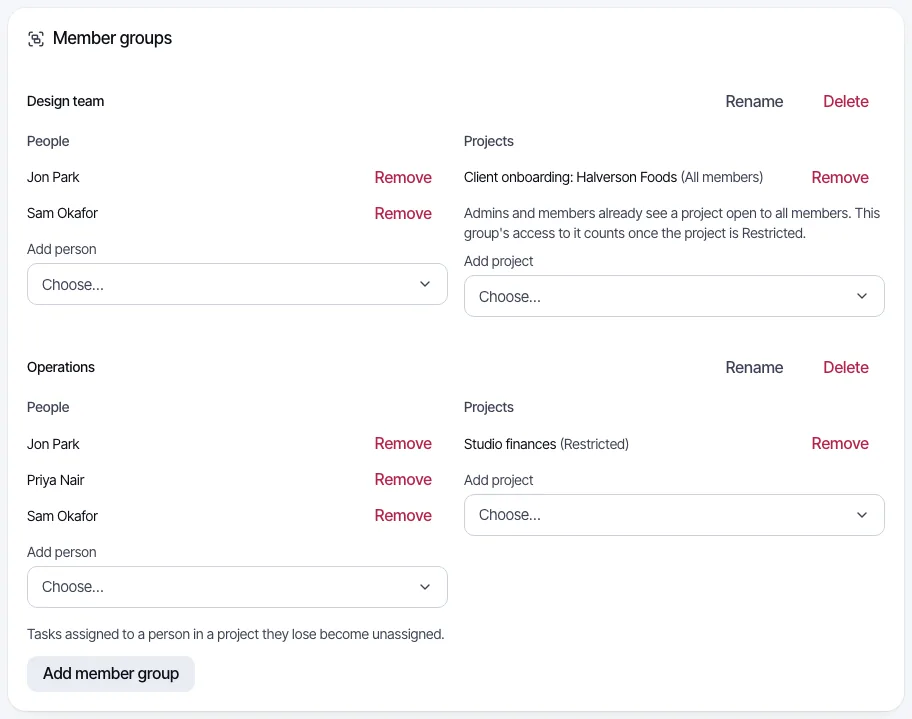
A Member group is a named group of people, such as a department, that you can give projects to in one step. The card is called Member groups in the app today. It is a different thing from Groups in Contacts.
- In the Member groups card, click Add member group.
- Type a Member group name and click Save.
- In the group's row, use Add person and Add project, each with a Choose… menu. Remove takes a person or project back out.
- Or open a project's row in the Projects card and use Add member group to give it a group.
Rename and Delete sit on each group. Deleting says "This deletes the member group for the whole workspace. Its people stay in the workspace, and its projects stay where they are." and counts who loses a project they reached only through the group. Confirm with Delete member group.
- A workspace holds up to 100 groups. A name is 1 to 120 characters and unique.
- Only admins and members can be in a group. A guest cannot.
- A group's access counts only while the project is Restricted. On an All members project it changes nothing, and it takes effect the moment you restrict the project.
- On a Restricted project's row in the Projects card, a person who reaches it through a group appears as their name followed by "Through" and the group names, with no Remove. To change it, take the person or the project out of the group. Nothing shows on an All members project.
- Only admins manage groups. Members see each group's name and people once at least one exists. Guests see none.
See what one person can see#
When someone asks why they can or cannot see a project, check their row.
- On the Members card, click Access on the person's row.
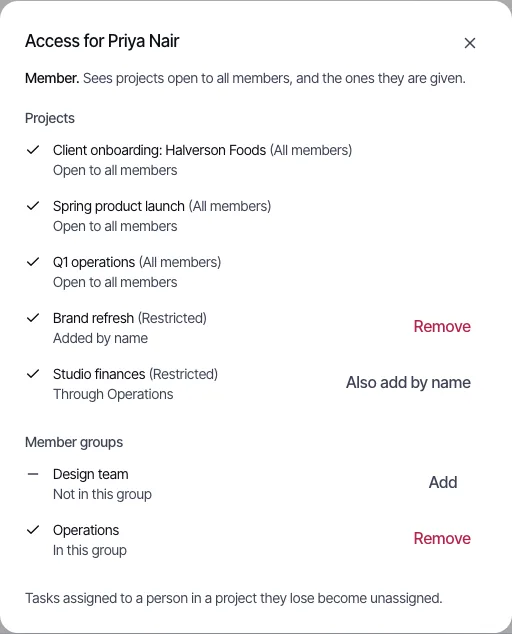
- Read the line under "Access for" their name. It states the role and what it sees: for a member, "Sees projects open to all members, and the ones they are given."
- Under Projects, each line shows the project with its mark and a reason: "Open to all members", "Added by name", "Through" and the group names, or "Does not see it".
- Use Add, Also add by name or Remove on a line to change it. Also add by name gives a project by name to someone who sees it only through a group.
- Groups list under it as "In this group" or "Not in this group". A guest shows "A guest cannot be in a member group."
- Click the X at the top right to close.
For an admin the dialog says every project is visible and there is nothing to add or remove. If a change is refused you see "That change was not saved. This list shows what is saved."
Guests: view and comment#
A guest sees only the projects they are added to, by name. Add one when you invite them, or later under Add member on the project's row or in their Access dialog.
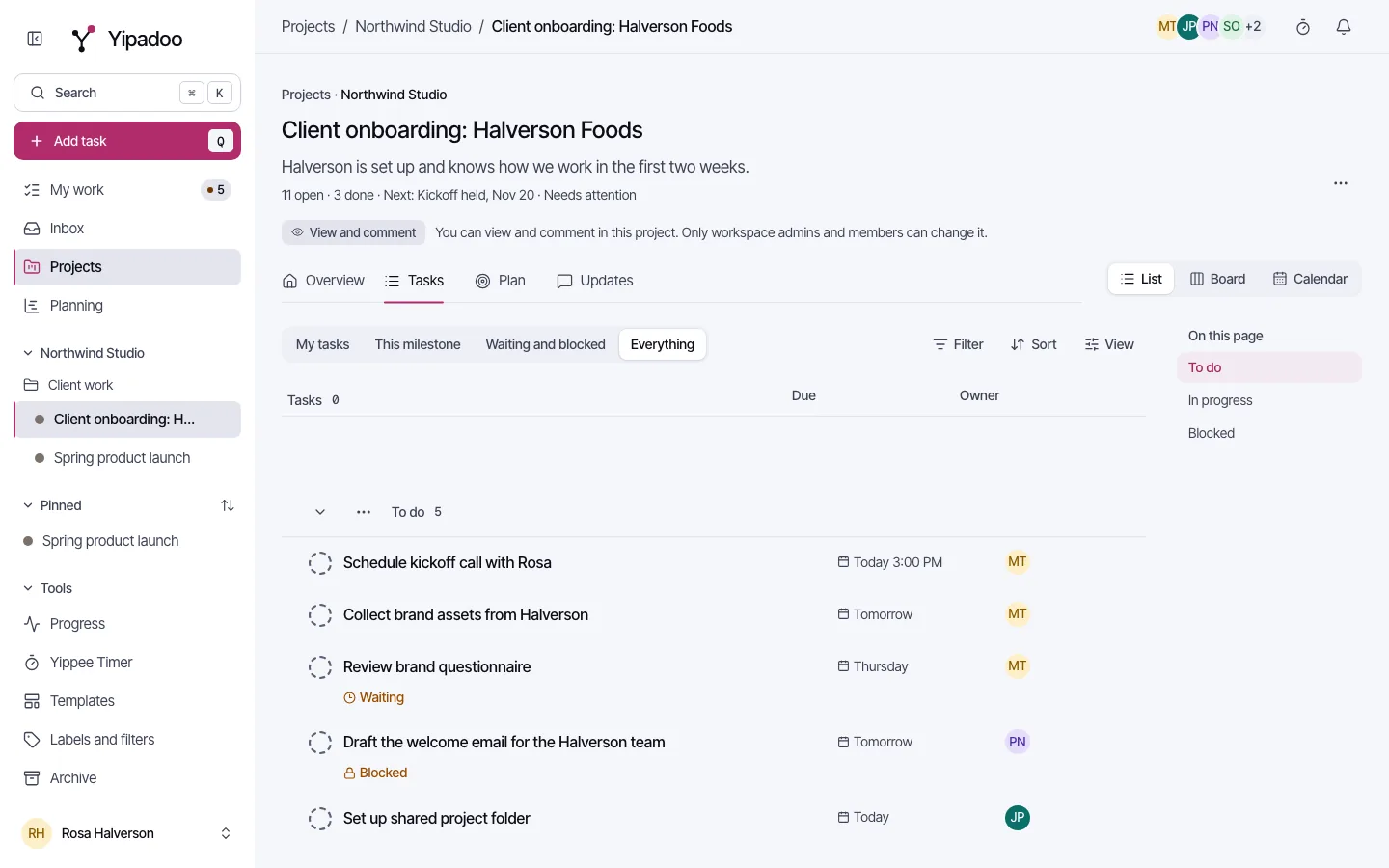
In such a project, a chip reads View and comment under the title, with the sentence "You can view and comment in this project. Only workspace admins and members can change it." Guests write comments, mention people and react. They cannot add, edit, complete, move or delete tasks. A guest also sees only Projects and People on the workspace page, never Team Inbox or Contacts.