
Filters
Save a search such as today & p1 as a filter, learn every word the query takes, open its results, pin it, and narrow a project's tasks with the Filter menu.
A filter is a saved search over your tasks, written in a short query such as today & p1 | overdue. The query is re-read every time you open the filter, so due before: next monday always means the next Monday from today.
The Filters page#
In the left rail, open Tools, then Labels and filters, and choose Filters in the switch at the top. You can also press G then V. The page reads "Save the task views you come back to."
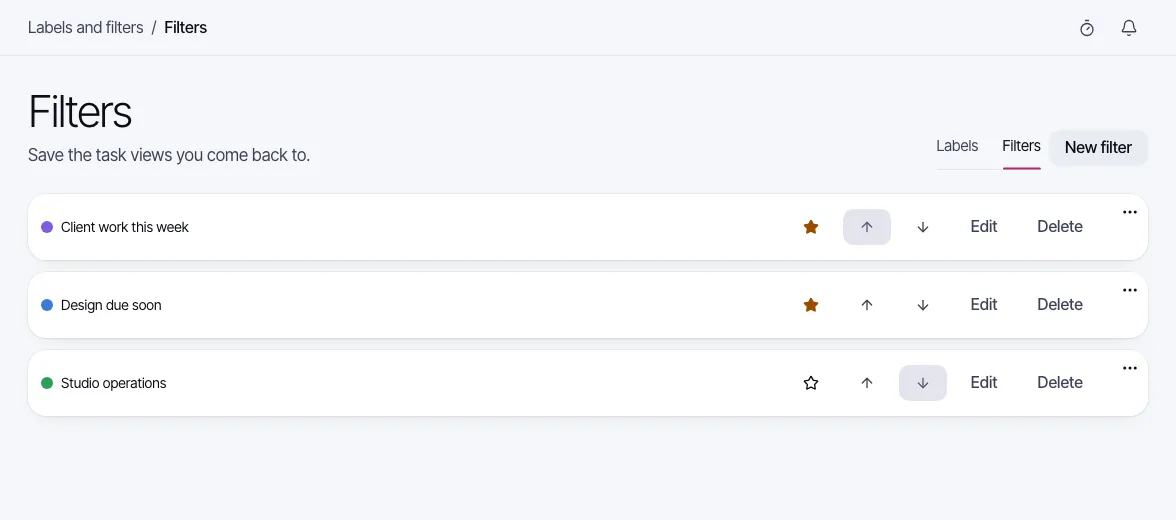
Each row has a color dot and the filter's name. Press the name to open its results. The star pins or unpins the filter, the arrows move it up or down, and Edit and Delete do what they say. The ⋯ button holds the same Edit and Delete. A pinned filter also shows in the left rail under Pinned.
Create a filter#
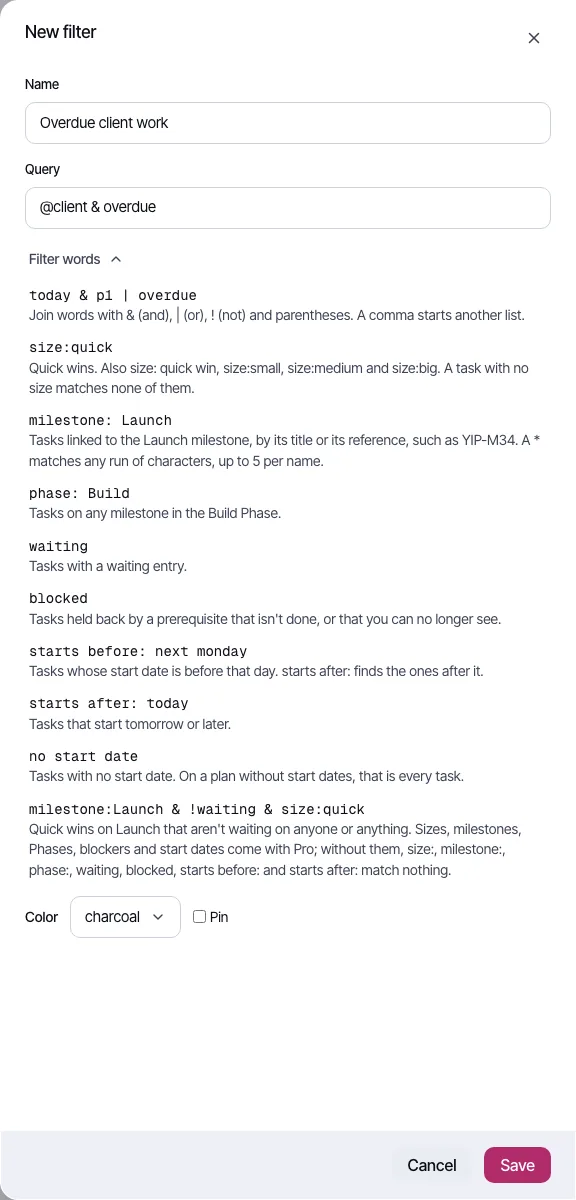
- Press New filter. The New filter panel opens.
- Type a Name, up to 100 characters.
- Type the Query, up to 2,000 characters. If it has a mistake, the error shows under the box as you type, and Save stays off.
- Optionally open Filter words to see examples, pick a Color, and tick Pin.
- Press Save.
What the query understands#
Join words with & (and), | (or) and ! (not), and group with parentheses. ! binds first, then &, then |. A comma starts a second list, and each list shows separately in the results.
| Word | It finds |
|---|---|
today, tomorrow, yesterday |
Tasks due on that day |
overdue (or od) |
Open tasks past their due date |
next 7 days (or 7 days) |
Tasks due in the next 7 days, today included; any number works |
no date, no time, no deadline |
No due date, a due date with no time, no deadline |
due before: next monday, due after: |
Due before or after a date |
deadline before:, deadline after: |
The same for a hard deadline |
created: today, created before:, created after: |
Created on, before or after a date |
p1 to p4, no priority |
Priority (p4 and no priority are the same) |
recurring, subtask, shared |
Repeating tasks, subtasks, tasks in a shared project |
assigned |
Tasks that have an assignee |
assigned to: me, assigned by:, added by: |
Tasks tied to a person, by name or me |
search: invoice |
Tasks whose title or description contains the words |
view all |
Every task |
#Work, ##Work, /Design |
A project, a project and its subprojects, a section |
%errands (or @errands) |
A label |
workspace: Acme |
Tasks in a workspace |
A date after a colon can be a phrase such as next monday or jan 27, or an offset such as -7 days, +2 weeks or +4 hours. A repeating phrase such as every day is refused.
A * matches any run of characters in a name, up to 5 per name: #Client*. Names end at a space, so write #Grocery\ List with a backslash.
Planning words#
These read sizes, milestones, Phases, waiting entries and start dates, which come with Pro or a Team seat. On Free, milestones also work in projects linked to your one active Goal. Where a feature is missing, its word matches nothing, and no start date matches every task.
| Word | It finds |
|---|---|
size:quick, size:small, size:medium, size:big |
Tasks of that Size (size:quick win also works) |
milestone: Launch |
Tasks linked to a milestone, by its title or reference |
phase: Build |
Tasks on any milestone in that Phase |
waiting, blocked |
Tasks with a waiting entry, tasks held by an unfinished prerequisite |
starts before: next monday, starts after:, no start date |
By start date |
Hard to undo words#
These read a task's reversibility and blast radius, on every plan. A task with nothing set matches none of them, so !reversibility:hard & !reversibility:easy finds tasks with no reversibility.
| Word | It finds |
|---|---|
reversibility:hard, reversibility:easy |
Tasks that are Hard to undo or Easy to undo (reversibility: hard to undo also works) |
blast: just me, blast: team, blast: customers, blast: public |
Tasks with that blast radius |
Another word after reversibility: or blast: is an error that lists the words it takes, such as Unknown blast radius "staff" after "blast:"; use just me, team, customers or public.
Open a filter#
Press a filter's name. The page shows the filter's name, its query and the open tasks that match, with the Focused and Full switch. The results sit in a fold-out titled with the query text and "N tasks", and the first one starts open. Each list has a Sort button for sorting and grouping (see Sort and group a list), and in Focused it shows the first five rows of each group and a Show all N button for the rest. A query with commas gets one fold-out per list. With no matches you see "No matching tasks."
Only open tasks show, and tasks in archived projects are left out. In a team project, a task shows when it is assigned to you or the project's Show in my Today is on.
Saved filters on each plan#
Free allows 3 saved filters. A fourth is refused with "Free allows 3 saved filters. Upgrade to Pro to add another." Pro and Team have no limit. Plans and pricing lists every plan limit.
Filter a project's tasks#
On a project's Tasks tab, the Filter button narrows the List, Board and Calendar for this visit only. Nothing you check is saved.
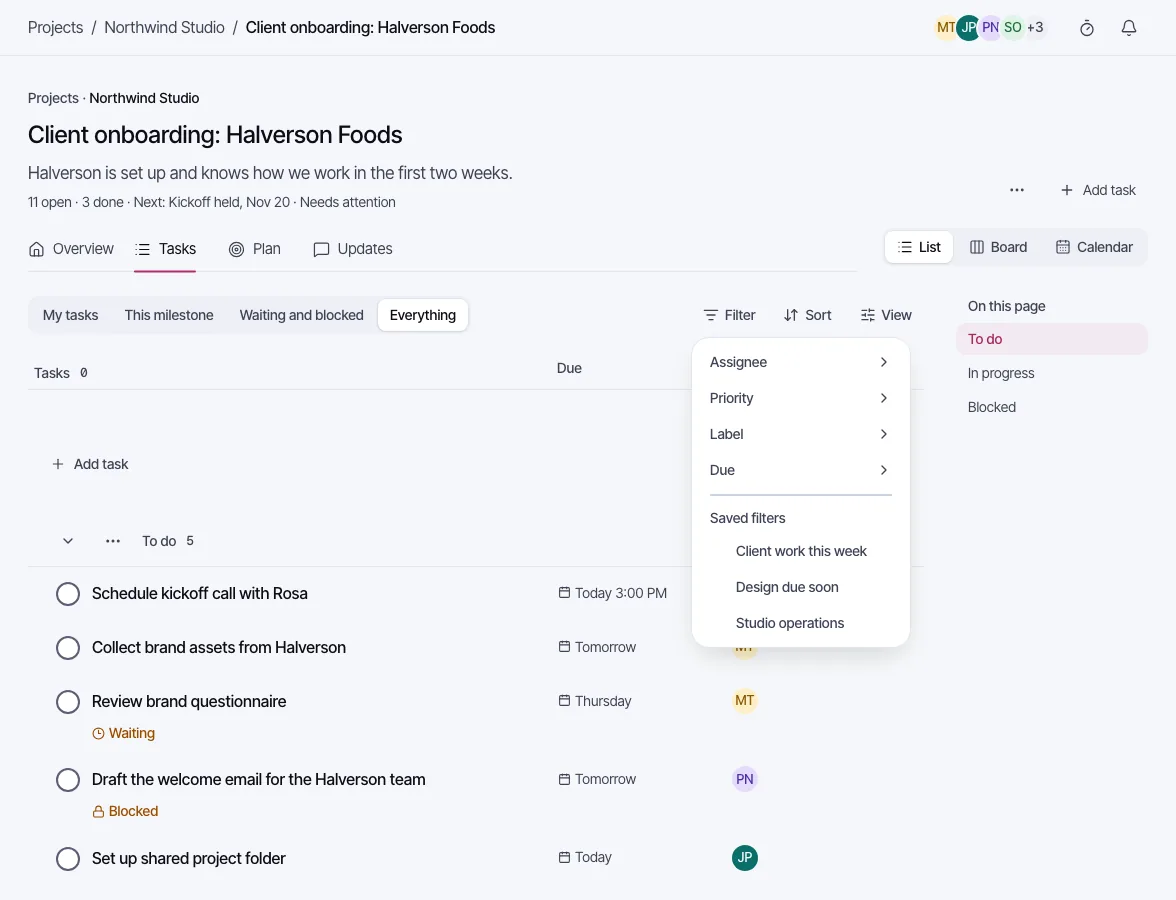
- Pick values under Assignee (including Unassigned), Priority, Label, Due (Overdue, Today, This week, No date), Reversibility (Easy to undo, Hard to undo) and Blast radius (Just me, Team, Customers, Public). Inside one group a task matches any checked value; across groups it must match each group you used.
- Under Saved filters, choose one of yours. Its name appears beside the button with a button to remove it. A saved filter with a comma is listed but disabled, with "Several lists can't show here" under it.
- Clear filters resets the lot. The button shows a count of what is on.
Related#
- Labels: what
%namefinds. - Project views: List, Board and Calendar.
- Plan a task: the Waiting and blocked words.