
Focus on one task
Show the one task to do next from Today, with the reason it is next, and see how Yipadoo ranks tasks for you and for a project.
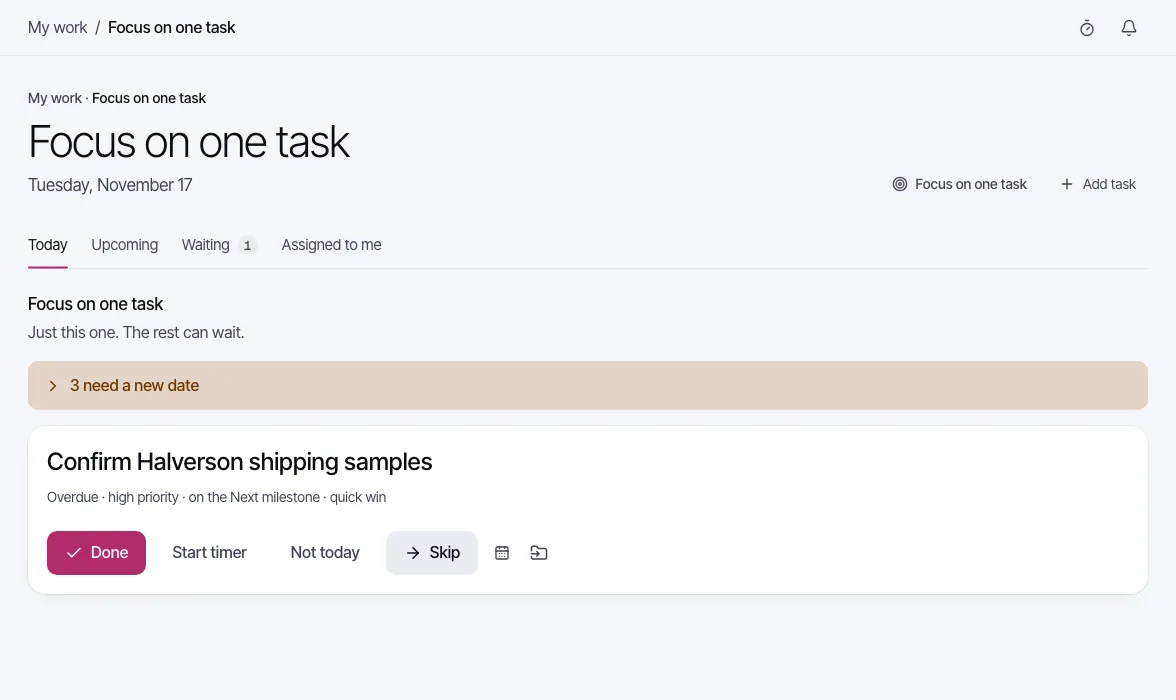
Focus on one task takes the choosing out of your day. It shows a single task from Today, says why that one is next, and hides the rest until you finish it or pass it over.
Open it#
On My work, press Focus on one task at the top right of the header. The page reads "Focus on one task" and "Just this one. The rest can wait."
The card shows the task's name and a reason line. A reason reads like "Overdue · deadline today · high priority · on the Next milestone · quick win". Each part is a fact that moved the task up the line.
What the buttons do#
- Done finishes the task, with the same toast and Undo as anywhere else. The next task takes its place.
- Start timer runs the Yippee Timer on this task. See The Yippee Timer.
- Not today moves the task's due date to tomorrow.
- Skip passes over the task until your next midnight and shows the next one. Skips are saved to your account, so a skipped task stays out of the line on every device. If you skip every task, the line comes round again in the order you skipped them.
If you can only read the task's project, the card shows Open task instead of Done, Start timer and Not today. Skip stays.
Overdue tasks also show above the card as a line such as "3 need a new date". Press it to re-plan them, the same way as on Today. See My work.
Which tasks it picks from#
Focus on one task looks only at tasks on Today and your overdue tasks. It leaves out a task when:
- it is done or deleted
- an unfinished prerequisite holds it
- it has a waiting entry
- its start date is after today
- it is assigned to someone else
When nothing qualifies, you see one of three messages. "Nothing to start right now." means everything left today is blocked, waiting, not started or someone else's. Day cleared. means the day had work and you finished it. "Nothing scheduled today." means no task is dated today.
How the order is decided#
The tasks that remain are ranked by these rules, in this order. Each rule only breaks ties left by the one above it.
- Tasks assigned to you come before unassigned ones.
- Tasks that are overdue or due today come first.
- Tasks with a hard deadline within 7 days, or one that has passed, come next.
- Higher priority beats lower.
- Tasks linked to the project's Next milestone, or to a milestone marked as a Final milestone, come ahead of others.
- Smaller tasks come first. A task with no Size counts as Small, so a Quick win ranks ahead of it and Medium and Big tasks behind it.
- Your manual order in the list decides the rest, then the date the task was added.
The milestone and size rules only matter where you have linked tasks to milestones or given tasks a Size. Setting a Size needs Pro or a Team seat. Without those, the other rules still order the list.
The Next task card on a project#
A project's Overview tab has a Next task card that picks one task from that project with the same rules. It looks at the project's open top-level tasks, not only today's, and tasks with no date are included. The header's Open next task button opens the same task in the task panel.
On the card:
- Skip passes the task over until your midnight, the same Skip as on the Focus page.
- Pin keeps this task as the project's next task until you finish it or choose Unpin. A pinned task shows the reason "Pinned" and wins over the rules, even over a task you skipped.
An empty card says "Nothing open here." when the project has no open task, or "Nothing you can start now." when every open task is held back by the rules above. See Project overview and brief.