
Share a project
Share a personal project with people who have a Yipadoo account, see what they can do, and learn every way to share work with someone outside your workspace.
Sharing lets other people work in one of your personal projects without a workspace. They read and change its tasks, and you stay its owner. Use it for a project you run with a partner, a friend or a client who already has a Yipadoo account.
Only personal projects have Share. A team project reaches people through its workspace; see Control who sees what. The Inbox cannot be shared.
Share a personal project#
- Open the project and click its ⋯ menu.
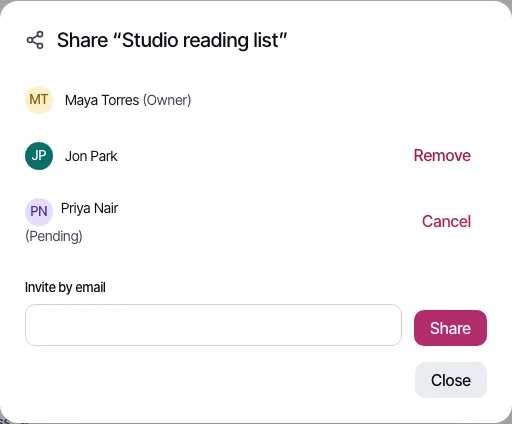
- Choose Share. The dialog "Share" followed by the project's name opens.
- In Invite by email, type the address of the person's Yipadoo account.
- Click Share.
Nothing is given yet. The person appears in the list marked (Pending) until they accept. A new project reads "Not shared with anyone yet."
Yipadoo does not email a share. The request shows at the top of the app the next time the person has it open, so tell them to look for it.
If the dialog refuses, it says why:
- "No account for that email." The person must already have a Yipadoo account. A share cannot create one. To bring in someone with no account, invite them to a workspace instead (see below).
- "You already own this project." You typed your own address.
- A message that names your plan's limit, when you are at the cap below.
Accept or decline a share#
The person sees a row at the top of the app that reads "<Name> wants to share <project> with you", with Decline and Accept. After Accept, a message says "You joined" the project's name and the project opens. After Decline, the row goes, and the owner sees the person marked (Declined).
Manage who is on the project#
Open Share from the project's ⋯ menu again. As the owner you can:
- Cancel a pending or declined share.
- Send again to someone who declined.
- Remove a collaborator. They lose access at once, and any tasks in the project assigned to them become unassigned.
A collaborator can open the same dialog and click Leave on their own row. Leaving works like a removal: they lose the project and their assigned tasks there become unassigned. Nobody is asked to confirm either one.
Once two or more people can see a personal project, their avatars show in the top bar. Click them to open the dialog.
What a collaborator can do#
A collaborator sees the project and works in it as you do. They add, change, complete, move and delete its tasks, and they comment. You can assign tasks to them, and they can assign tasks to you.
A collaborator cannot share the project with anyone else, archive it, delete it or move it. Those stay with the owner. Moving a shared project into a workspace needs every collaborator to accept; see Moving projects.
How many people#
A project holds up to 3 collaborators on Free and 10 on Pro and Team. You do not count, and pending shares do. A declined share does not. The plan that counts is the owner's, so a collaborator on Free can join a project owned by someone on Pro. When you reach the cap, the dialog says so and, on Free, points to Pro. Beta access has no cap. See Plans and pricing.
Can I share with someone outside my workspace?#
Yes, in the ways below. Yipadoo has no public links and no view-only links. Any link only opens for a person who already has access.
| You want to | Do this | What the person can do |
|---|---|---|
| Work on one personal project with someone who has an account | Share on the project | Read and change its tasks and comment. Nothing else of yours. |
| Give someone who has no account a look at one team project | Invite them by email to your workspace as a Guest and give them the project (see People and roles) | View and comment in the projects you name. They cannot change tasks. |
| Add a new teammate | Invite them by email as a Member, or send the workspace's invite link | Join as a member and see projects open to all members. The link always joins as a member. |
| Point someone at one task or project | Copy link on the task or in the project's ⋯ menu | The link opens only for people who can already see it. Anyone else sees "This task isn't available" or "This project isn't available". "Project not found" appears only when you open a project's own page and your sync holds no such project. |
Guests and members need a workspace on the Team plan. Guests are free, up to 5 for each paid seat. A guest never sees other people's email addresses. If a link says a task or project isn't available, When something goes wrong explains why.