
Quick Add
Type one line to add a task with its project, date, priority and more, and see every mark Quick Add reads and where the task lands.
Quick Add is a one-line box for capturing a task. You type the task and its details together, and Yipadoo reads the words it knows: the project, the date, the priority, a label, a person. Whatever it does not read stays as the task's title.
Open Quick Add#
Use any of these:
- Press
Qanywhere in the app, as long as you are not typing in a field. - Click Add task at the top of the left rail.
- Click Add task on My work or on a project's Tasks tab.
- On a phone, tap Add task in the middle of the bottom bar.
The Quick Add task pop-up opens with the cursor in the box. Press Esc, or click Cancel, to close it without adding anything.
Where you open it sets the starting values: from Today the due date starts as Today, from a project that project is chosen, and on Upcoming the Add button on a day starts with that day. A mark you type always wins.
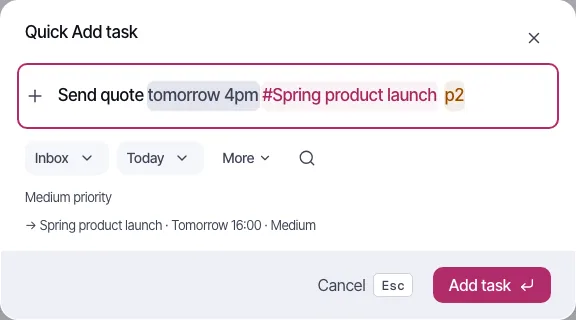
What Quick Add reads#
Type a mark right before the word it applies to. A mark only counts at the start of a word, and you never have to use one: the pickers under the box do the same job.
| Type | It sets |
|---|---|
#name |
The project, matched by name (a name with spaces works if it matches a project you can add to) |
/name |
A section inside that project |
%name or @name |
A label; both do the same thing |
p1, p2, p3, p4 |
Priority: High, Medium, Low, none |
+name |
The person it is assigned to; +me assigns it to you |
{friday} |
A deadline, in braces |
!30m |
A reminder |
tomorrow 4pm, in 3 days, every weekday |
The due date, with a time or a repeat if you give one |
A few details:
+namematches the people you share projects with, and+mematches you. A+wordthat matches nobody stays in the title.- With more than one date phrase or priority, the first one counts.
- A deadline is a day, never a time, and never repeats. The date phrases you can use are listed in Dates, repeats and reminders.
- For reminders,
!30mmeans 30 minutes from now,!30mbor!30m beforemeans 30 minutes before the due time, and!6pmor!mon 9amnames a moment. Abeforereminder needs a due time; without one it counts from now. - To keep a mark as plain text, put a backslash in front of it:
\#hashtag.
Note: Quick Add has no mark for duration or size. Set those on the task panel. See The task panel.
Preview chips and the hint line#
As you type, Quick Add tints each word it recognizes. Dates, deadlines, people and priorities each get their own tint. Projects, sections, labels and reminders share one. Priority tints follow the level you typed.
Under the pickers, a line starting with an arrow says where the task will land, for example → Inbox · Tomorrow · High. It lists the project, the due date and the priority. When the box is empty, the line shows a short tip instead.
Suggestions and creating a project#
When you type #, /, % or @, a list of matching names opens under the box. Move through it with the arrow keys and press Enter or Tab, or click a name.
If the one-word project or section you typed does not exist, the list ends with Create project "name" or Create section "name". Pick it to create the project or section with the task. Otherwise the typed name stays in the title as plain text, so nothing is created by accident. A %name that matches no label still goes on the task as a label name.
Pickers under the box#
- Project menu. It shows the project the task will go to, such as "Inbox". It starts on the Inbox, or on the project you came from.
- Due menu. It shows the current choice, such as "No date". The other choices are Today, Tomorrow and Next week.
- More. Click it to open a search field that reads "No parent. Search tasks…", which makes the task a subtask, and a priority menu that shows its current value ("No priority"; the others are High, Medium and Low). A parent decides the project, so
#and/then stay as text.
Once you type, a magnifier button appears. Its tooltip reads Search for this instead.
Add the task and where it lands#
Press Enter or click Add task. The pop-up closes and a toast at the bottom says where the task went, for example Added to Inbox. If the page you are on will not show the new task, the toast also offers Open, which opens the task. The toast goes away by itself after a few seconds.
With no project named and none chosen, a task goes to your Inbox.
Add several tasks#
Quick Add takes one task at a time and closes after each, so press Q again for the next one. In the Inbox, the add bar at the top stays open: type a line, press Enter, and the cursor stays there for the next task. It reads the same marks, but it has no suggestion list and never creates a project or section: a #name that matches nothing stays in the title.
Note: Free allows 2,000 open tasks that you created, and Pro and Team allow 50,000. At the limit, Yipadoo refuses the new task and says why. See Plans and pricing.