Plan the quarter with a Goal
Turn on Goals, plan one outcome for the quarter, commit it, link the Phases that deliver it, and close it as a win or a drop.
A Goal is one outcome you want to reach by the end of a quarter. It sits above your projects: Phases from those projects roll up into it, so you can see how far the work has come. Each quarter holds only a few committed Goals, so each one gets real attention.
Turn Goals on#
- Open the account menu at the foot of the left rail, choose Profile and settings, then open the Planning tab.
- In the Goals card, tick Enable personal Goals.
- Keep Show Goals in Planning ticked so the Goals view appears beside Timeline and Weekly reviews.
Workspace Goals are separate: an admin turns them on for each workspace, as Goal reviews and changes explains.
Plan a Goal#
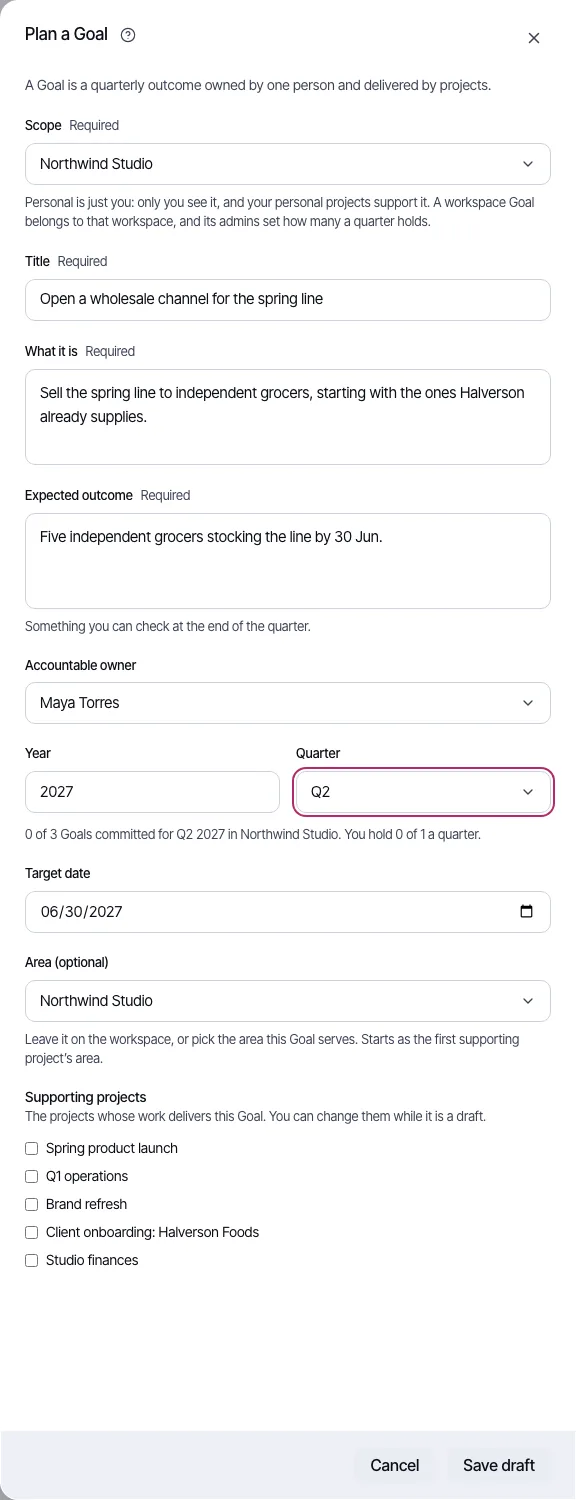
Planning a Goal saves a draft you can shape before you commit.
- Click Planning in the left rail (or press
gthenl), then Goals. The Goals list explains that page. - Click Plan a Goal.
- Choose Scope: Personal or a workspace.
- Fill in Title, What it is and Expected outcome. The outcome must be something you can check at the end of the quarter, such as "10 clients paying through the portal by 15 Dec".
- For a workspace Goal, pick the Accountable owner.
- Set Year and Quarter. The Target date defaults to the last day of that quarter, and it must fall inside the quarter you chose.
- Optionally pick an Area (optional).
- Tick the Supporting projects that will deliver it. You can change them while the Goal is a draft.
- Click Save draft.
If a workspace can't take new Goals, the panel says "New workspace Goals require Team." or "...require Pro."
Your first Goal#
New accounts are offered a starter Goal once, on a page headed "Start with one Goal". Click Set up my first Goal to get a Goal with three dated first steps and a Final milestone 13 days out. Rename it, change anything, or click Skip.
The Goal page#
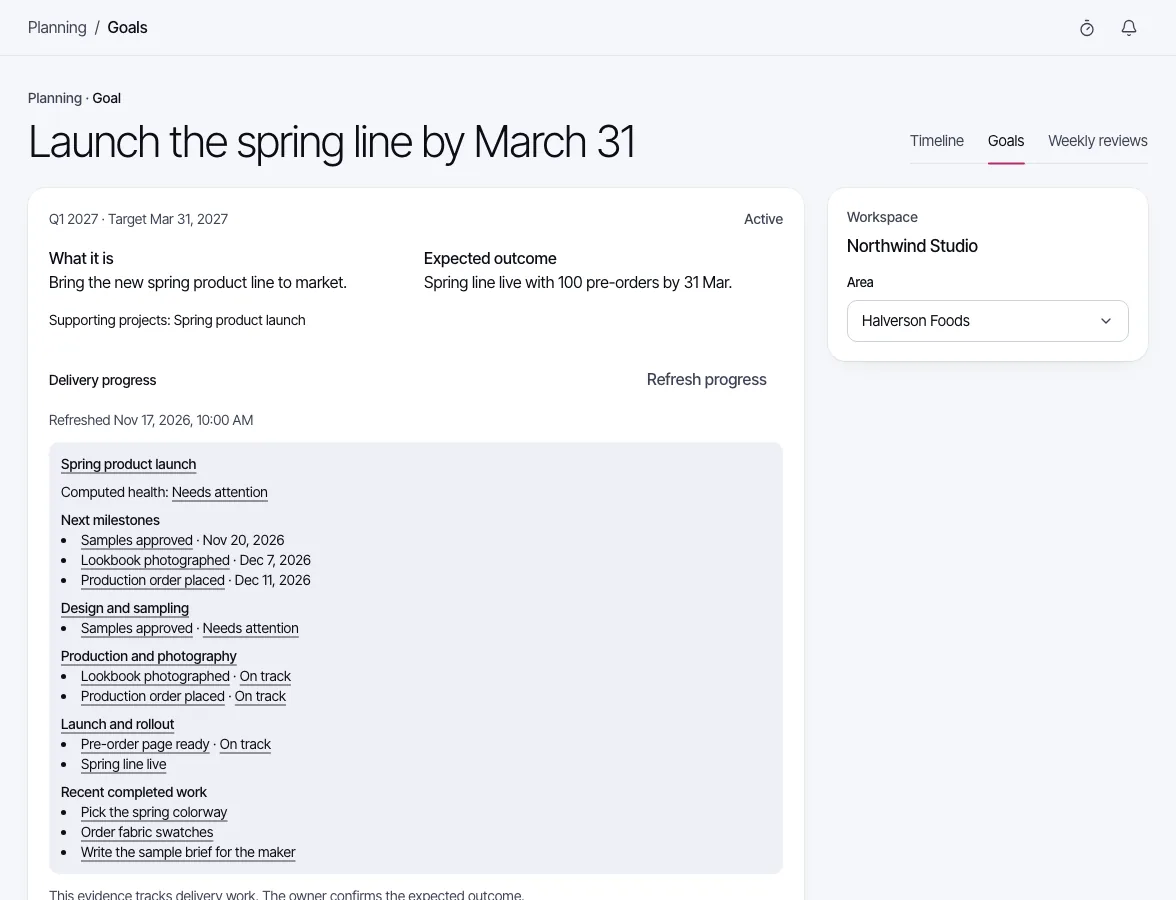
Click a Goal's title to open it. The card shows the quarter, the target date and a status: Draft, Active, Win or Dropped. An Active Goal past its target reads "Needs a new date".
Under Phases and milestones you see each linked Phase with its progress, end date and milestones, and the Final milestone with who it is for. The right column shows the Workspace (or Personal) and, in a workspace with Areas, the Area. Lower down are Delivery progress, Weekly reviews and Amendments.
Commit, win or drop#
- Commit. On a draft, tick "I confirm this outcome is achievable without an outside dependency.", then click Commit Goal. Only the owner can commit. Once committed, the title, objective and outcome are fixed.
- Win. When the outcome is delivered, the owner clicks Confirm Win. The Goal reads "Win" and appears under the Wins filter on the Goals page.
- Drop. Click Drop Goal if you stop pursuing it. This can't be undone, and a dropped Goal still counts toward the quarter's limit.
To change a draft, click Edit draft, adjust the fields and click Save draft changes. Delete draft throws one away. Owners and workspace admins can edit, delete or drop; only the owner commits or confirms a win.
Limits per quarter#
Committed, won and dropped Goals all count toward a quarter, so winning or dropping one doesn't free its slot. The limit line in the Plan a Goal panel shows where you stand, such as "2 of 3 Goals committed for Q4 2026 in Personal." The Goal limits card on the Goals page lists workspaces, as "<Workspace> 2 of 3. Each owner holds up to 1 a quarter."
- On Pro and Team, you can commit up to three personal Goals a quarter.
- On Free, you hold one active personal Goal at a time, with no quarterly count. Committing a second is refused with "Free holds 1 active Goal." Win or drop the active one first.
- A workspace holds three Goals a quarter by default, and each owner holds one. Admins can raise these to as many as seven and three.
When a quarter is full, you can still save a draft, but Commit Goal stays off. Plan the draft for another quarter, give it another owner, or, in a workspace, ask an admin to raise the limit.
Phases on a Goal#
On the Goal page, under Phases and milestones, two buttons attach Phases for as long as the Goal isn't dropped:
- Click Add Phase to create a new Phase in a project, or Link project to attach one a project already has.
- Pick the Project. A personal Goal takes Phases from your personal projects; a workspace Goal takes them from that workspace.
- For Link project, pick an existing Phase or New Phase; a new one needs a Phase title.
- Click Add Phase or Link Phase.
A Goal has one Final milestone across all its Phases. You can also link from a project's Plan: click Link to a Goal under a Phase. If none of your projects can take a Phase, the panel says "No project can take a Phase for this Goal yet. Planning needs Pro or a Team seat." See Phases.
Delivery progress#
On an active or won Goal, Delivery progress lists each supporting project with its health, next milestones and recently completed tasks. Click a name to jump to it, or Refresh progress to reload.
The card's footer notes that this evidence tracks delivery work. The owner still confirms the expected outcome.