Your first plan
Turn a bigger outcome into a project with milestones, link your tasks to them, and add Phases or a Goal if the work needs them.
A plan is for work that has stages, a date or someone waiting on it. You break the outcome into milestones, link tasks to each one, and the plan shows how far along you are. If a plain list is enough for the work in front of you, skip this page. Tasks alone are fine.
Note: Milestones, Phases and Final milestones need Pro or a Team seat. Your 14-day trial counts as Pro. On the Free plan, milestones work in the projects that your one active Goal links to. Phases always need Pro or a Team seat.
Make a project#
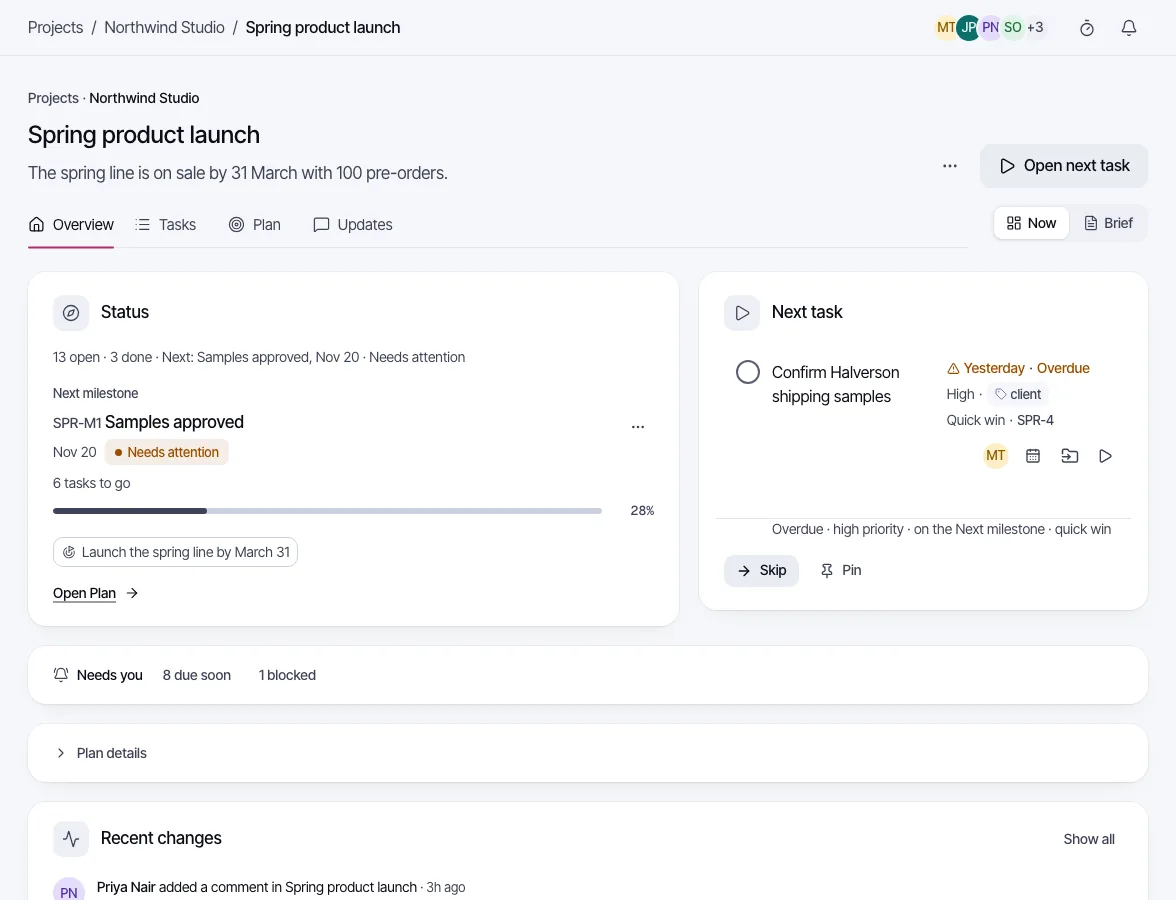
A project holds the tasks and the plan for one outcome. This example uses a spring product launch.
- Open Projects in the left rail.
- Press Add project, then choose Blank. To start from a ready-made plan, choose From a template instead.
- Type a New project name, such as
Spring product launch. - If you have a workspace, a Where menu appears. Choose Personal projects or the workspace. A personal project is seen only by you.
- Press Save. The project opens on its Tasks tab. Open Plan to build the plan.
A project has six tabs: Overview, Tasks, Plan, Decisions, Glossary and Updates. Put tasks into it with Quick Add by typing #Spring product launch in the line.
Add milestones#
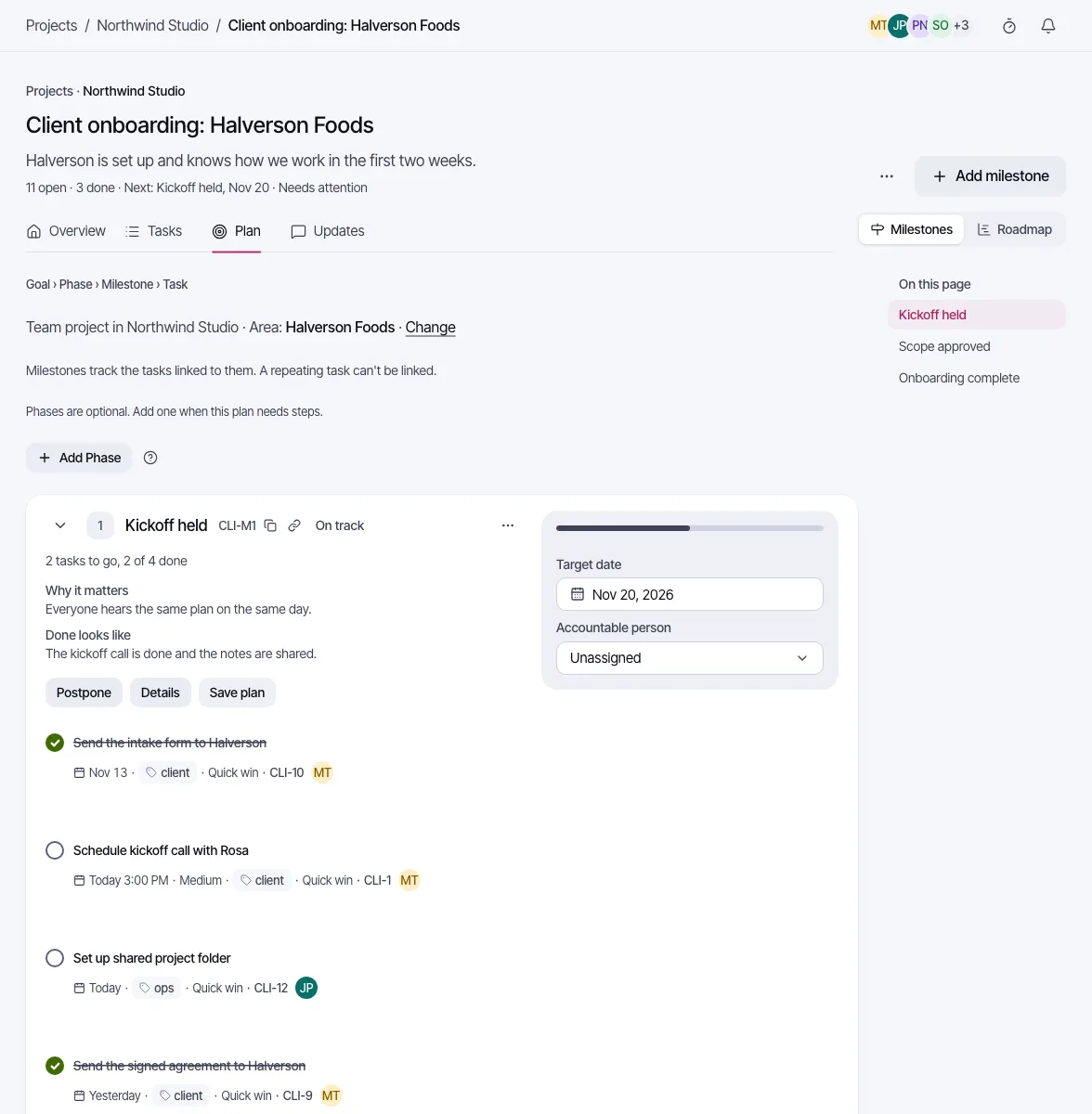
A milestone is a checkpoint, such as "Landing page live". It is finished when its linked tasks are.
- Open the Plan tab and press Add milestone.
- Type a Title. Fill Why it matters and Done looks like if you want them.
- Set a Target date, and pick an Accountable person if someone owns it.
- Save.
Add three or four milestones in the order you expect to reach them.
Link tasks to a milestone#
- On the Plan tab, open a milestone with the chevron (Open milestone) beside its title.
- In Link an existing task…, search for a task and choose it.
- Repeat for each task that belongs to this checkpoint.
The card shows a count such as "2 of 4 done" and a progress bar. When the last linked task is finished, the open card reads All done and its health pill reads Completed; folded, it shrinks to one line that reads Reached with the date. There is no button to mark it done by hand. A repeating task cannot be linked.
Group milestones into Phases (optional)#
A Phase is an ordered step, such as Design, Build and Launch, that holds several milestones. Add one when a plan has stages.
- On the Plan tab, press Add Phase.
- Type a Title, and fill Why this Phase matters if you want to.
- Open a milestone and pick the Phase in its Phase field, or press Add milestone inside the Phase.
Milestones with no Phase sit under Ungrouped. Deleting a Phase returns its milestones there. A Phase shows a progress bar rolled up from its milestones. See Phases for ordering and owners.
Add a Goal (optional)#
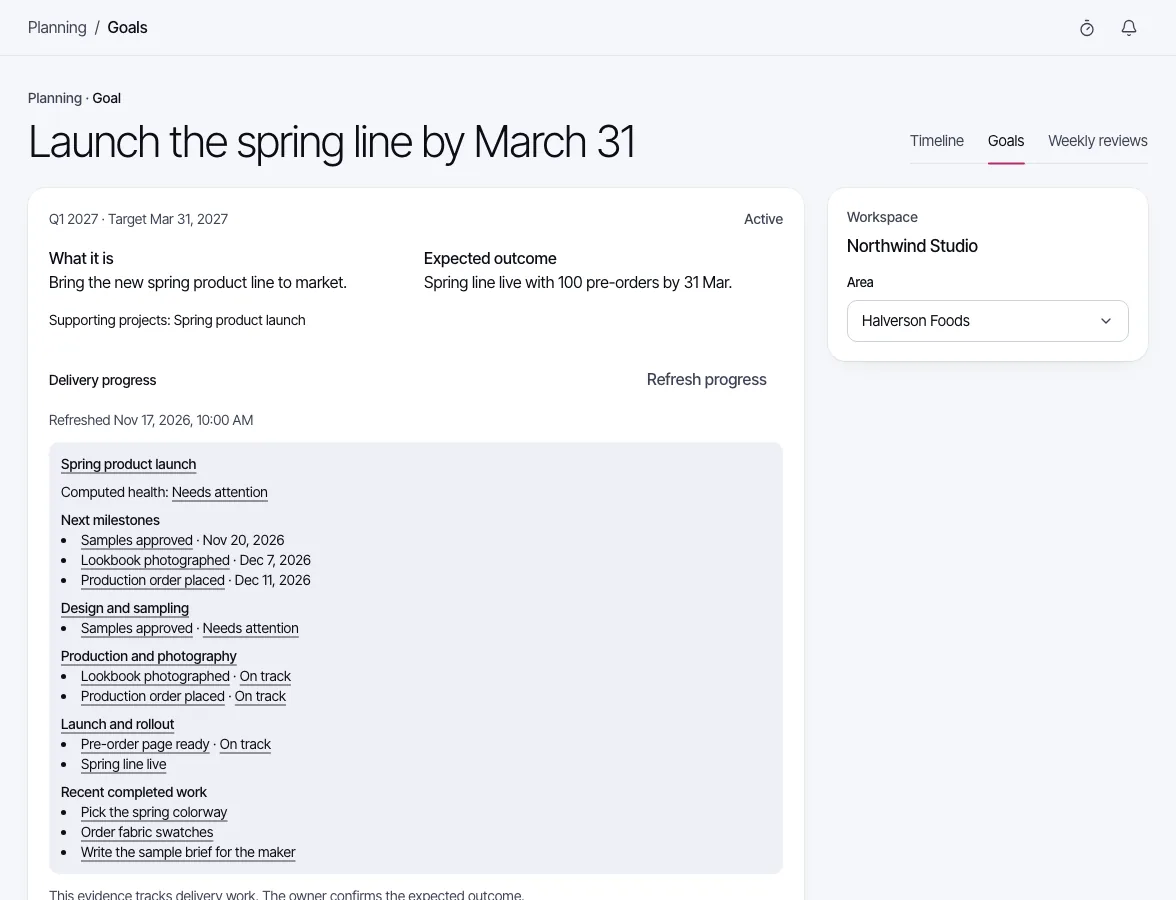
A Goal is a quarterly outcome that your Phases deliver. Use one when you want a single sentence to say what the quarter is for.
- Open Planning in the left rail, then Goals.
- Press Plan a Goal, choose the Scope (Personal or a workspace), and fill Title, What it is and Expected outcome.
- Choose the Year and Quarter, tick the Supporting projects, and press Save draft.
- Back on the Plan tab, press Link to a Goal under a Phase to connect it.
A saved draft is not committed yet; committing it is a separate step. Free holds one active Goal at a time; Pro and Team hold up to three committed Goals a quarter. Goals covers committing, winning and dropping.
See where you stand#
Open the project's Overview. It shows the next milestone with its date and progress, the next task, and what needs you. Open Planning for every project on one Timeline.