
Moving projects
Move a project between Personal and a workspace, or between two workspaces, and see what it keeps and what it loses.
You can move a project to share it with a team, to bring your personal work into a business, or to reorganize between workspaces. A move keeps the project's tasks, comments and history. It changes who can see the project and clears a few links that only make sense in the old place.
Move one project#
- Open the project's ⋯ menu (also in the project's row in the left rail) and click Move project….
- Under Move to, pick the destination: Personal, or a workspace. A destination that can't take the project is greyed out, with the reason beside it.
- Click Continue.
- Read What the move does. It lists the effects for this exact move.
- If a project code clashes with one at the destination, fix the abbreviation fields.
- Click Move to <destination>.
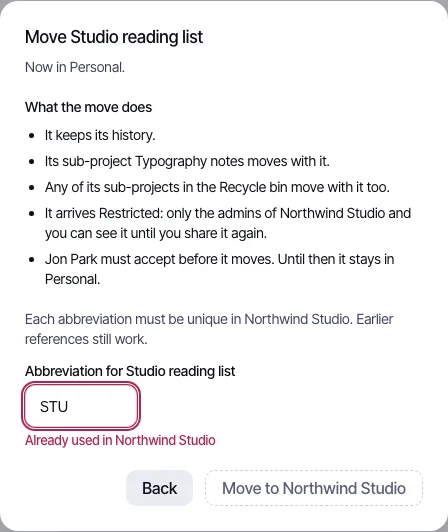
A project moves together with its sub-projects.
Who can move what#
- A personal project can go to a workspace where you are an admin.
- A workspace project can go to another workspace if you are an admin of both.
- A project can come back to Personal if you created it and every project under it.
The workspace it goes to must be on the Team plan and have an owner. A Pro workspace also works while its owner is the only person in it. If the destination can't take the project, it is greyed out or the move stops with a message such as "<destination> needs the Team plan to take projects." or "<destination> needs the Pro plan to take projects."
What is kept and what is cleared#
The project keeps its tasks, comments and history, and its sub-projects come with it. A few things change around that. These links are cleared:
- The project's Area. Areas belong to one workspace, so the project joins the new place with none. See Areas.
- The links from its Phases to Goals.
- The For whom on its Final milestones. See Final milestones.
Who can see the project also changes:
- Into a workspace, the project arrives Restricted: only the workspace's admins and you can see it until you share it again.
- Into Personal, it becomes your own personal project, shared with no one.
- People who could see it only through the old workspace lose access.
The confirm step lists other side effects too. When you move a workspace project, people who can no longer see it are unassigned from its tasks, and Team Inbox posts about the project or its Phases lose it as their subject. A sub-project you move without its parent leaves the parent and moves to the top level.
To open it up after a move into a workspace, open the project and make it visible to the workspace's members.
Goals can block a move#
An Active or Won Goal that links the project holds it in place. The move stops with a message such as "The committed Goal "<title>" links this project, so propose an amendment that takes it off the Goal before moving it." Propose that amendment, wait for it to be approved, then move the project. See Goal reviews and changes.
For a move out of a workspace, a Phase of the project that sits on an Active or Won Goal must be taken off that Goal first. Dropped Goals don't hold a project.
Decisions and glossary terms hold a project in place#
A project that holds decisions or glossary terms can't leave the space it is in, because a decision's or a term's workspace is fixed. A team project can't move to another workspace or to Personal, and a personal project can't move into a workspace. It holds a decision or a term when it is the project's own, at any status, or is linked to the project or to one of its tasks or milestones. The move stops with "This project can't move there right now. A committed Goal may hold it or one of its Phases, or a collaborator may not have answered an earlier move yet. A project that holds decisions or glossary terms stays where it is; see its Decisions tab."
Consent from collaborators#
If other people collaborate on a personal project, each of them must accept the move. Until they do, the project stays in Personal, and the page says "Waiting for every collaborator to accept." Collaborators answer under Project move invitations with Accept or Decline. You finish the move from Pending project moves with Check consent and finish move. A floating prompt, "Review project moves", links to the page.
Move several projects at once#
To bring a batch of personal projects into a workspace, or into a new one:
- Open Projects in the left rail and, under Personal projects, click Move to a workspace. A banner reading "N personal projects · Move to a workspace" appears if you run a Team workspace and have projects to move.
- Tick the Personal projects to move. A selected project brings its sub-projects.
- Under Destination, pick Create a workspace, or a workspace you administer.
- Tick Visible to all workspace members if you want that. Without it, moved projects start Restricted.
- Check Move preview and Project abbreviations. Each code must be unique in the destination.
- Click Move to a workspace, then Confirm move.
If the projects moved but are still Restricted, open each one to make it visible to the workspace's members.