
Propose, accept and link decisions
Propose a decision, accept or reject it, replace it with a newer one, link it to the work it governs, and see what a connected assistant can do with decisions.
A decision starts as a proposal and goes into force when a person accepts it in the app. This page walks through that, then shows how to tie a decision to the tasks, milestones and projects it governs. Decisions covers what a decision is, its statuses and who may do what.
Propose a decision#
- Open a project's Decisions tab, or choose Decisions on the workspace page.
- Click Propose decision. The Propose a decision panel opens.
- Type a Title and the Decision. Both are required. Fill in Context, Options considered and Consequences too, since whoever decides reads them first.
- Under Scope, pick where it holds. On a project the choices are the project, its Area and its workspace. On a workspace they are the workspace, each Area and each project where you can change tasks. The menu offers only the places you may propose for.
- In a workspace, pick an Owner from its admins and members. It starts as you.
- Leave Supersedes on Nothing, unless the decision replaces one in force (see Supersede a decision).
- Click Propose decision. A message reads "Decision proposed." and the decision's page opens, marked Proposed.
Propose decision shows only where you may propose. Who can do what has the rule.
A change to a glossary term's name or definition, or its deprecation, is proposed from the term's page instead, as a Glossary decision. It is accepted and rejected here like any other decision. See Change or deprecate an Active term.
The decision page#
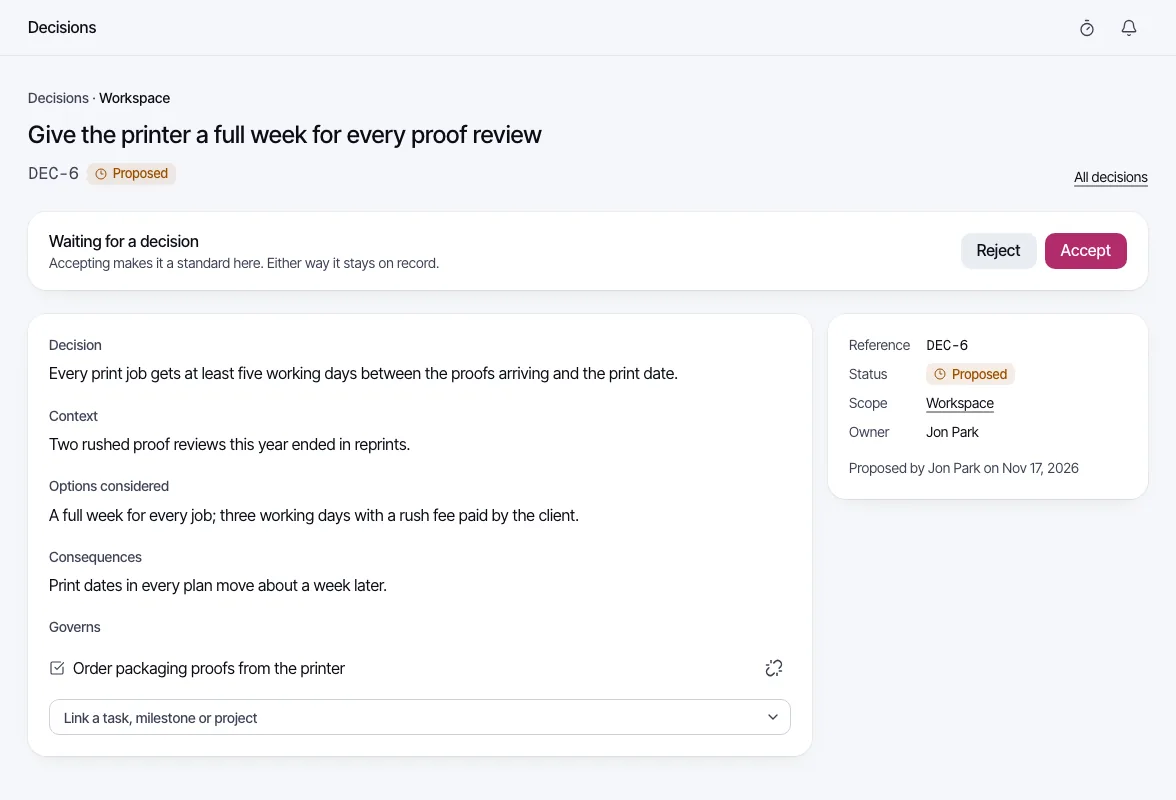
- The main card holds Decision, Context, Options considered and Consequences, leaving out any that are empty, then Governs.
- The card beside it holds Reference, Status, Scope and Owner. Click the scope to open the register the decision is listed on.
- Under those, the history says who proposed it and when, who accepted or rejected it and when, and what superseded it. A decision proposed through a connected assistant reads "through a connected assistant"; the person who proposed it sees the connection's own name instead.
- Supersedes DEC-4, or whichever reference applies, opens the decision this one replaced.
- All decisions goes back to the register.
The project's activity records each decision proposed, accepted, rejected, superseded or unlinked. For a workspace or Area decision, that record is in the workspace's history, for its admins and members. See Activity and the Bin.
Accept or reject a decision#
- Open the decision from the register, or from its row in Needs you.
- While it is Proposed, a card at the top reads Waiting for a decision. If you can decide, the card holds Reject and Accept.
- Click Accept to put the decision in force, or Reject to turn it down. Either way it stays on record.
Anyone else sees who it waits for: "Waiting for a workspace admin to accept or reject it." or, in a personal project, "Waiting for the project's owner to accept or reject it."
Supersede a decision#
An Accepted decision can't be edited. To change it, replace it with a new one.
- Propose a new decision with the same scope: the same workspace, Area or project.
- Under Supersedes, choose the decision it replaces. The menu lists only Accepted decisions with the scope you picked.
- When the new decision is accepted, the old one turns Superseded. Its row and its page link to the replacement.
If the new decision is rejected instead, the old one stays in force.
The old decision keeps its links as part of its history, but stops governing that work the moment it is superseded. Link the new decision to the work it governs.
Link a decision to the work it governs#
A link says which tasks, milestones and projects a decision applies to. Linking a project covers every task and milestone in it.
- Open the decision.
- Under Governs, click Link a task, milestone or project and choose one. The list offers open tasks (not subtasks), milestones and projects inside the decision's scope, in projects where you can change tasks.
- To remove a link, click the unlink button at the end of its row. It shows to anyone who can change tasks in that project.
A Rejected or Superseded decision takes no new links.
Links that clear a Hard to undo task#
In a project whose work rules gate Hard tasks, an Accepted decision linked to a task that is Hard to undo lets that task be completed. It counts only when a workspace admin made the link in the app, or a personal project's owner did. A link a member or a connected assistant made still shows and still governs the task, but the task still needs a sign-off. A decision linked to the project or to a milestone clears no task. See Hard to undo and sign-off.
The Governed by chip#
When an Accepted decision is linked to a task or a milestone, or to its project, the task's row and the milestone show a chip such as Governed by DEC-3. It tells you a rule applies before you change the work. When more than one decision applies, the chip adds a count such as +1.
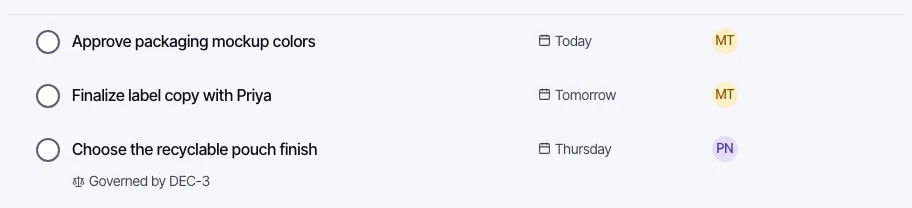
- Click the chip to open the decision. With more than one, it opens the project's register narrowed to those decisions, with Show every decision to see the rest.
- A Proposed decision shows no chip, since it governs nothing until it is accepted.
- A task is not governed through the milestone it belongs to. Link the task itself, or its project.
When linked work moves#
When a linked task moves to another project, its link follows it if the decision still covers the new project, such as a workspace decision and a project in the same workspace. Otherwise the link ends, and activity records it.
A project that holds decisions can't leave the space it is in, because a decision's workspace and Area are fixed. A team project can't move to another workspace or to Personal, a personal project can't move into a workspace, and the project's Area can't change. It holds a decision when the decision is its own, at any status, or is linked to the project or to one of its tasks or milestones. In Move project… the move stops with "This project can't move there right now. A committed Goal may hold it or one of its Phases, or a collaborator may not have answered an earlier move yet. A project that holds decisions or glossary terms stays where it is; see its Decisions tab." See Moving projects.
Sign-off in Needs you#
When someone proposes a decision in a workspace, at any scope, each of the workspace's admins except the proposer gets an item in Needs you in the Team Inbox. It reads "proposed a decision for you to accept or reject" after the proposer's name, with the decision's title below. Pushes for it follow your Team Inbox alerts. Click the row to open the decision.
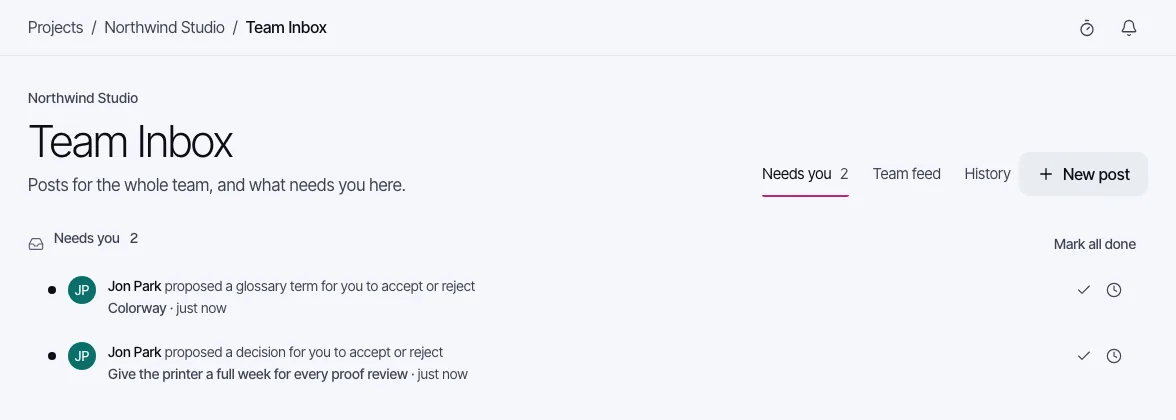
Once any admin accepts or rejects the decision, the item is done for every admin.
While a decision is still waiting, its item follows who can decide it. If the decision's project goes to the Bin, the item leaves Needs you, and it comes back if the project is restored. Someone who stops being an admin loses the item, and someone made an admin gets one for each decision still waiting. Once a decision is decided, its done item can't be brought back with Mark not done.
A Proposed glossary term raises an item of its own, which opens the term; see Sign-off in Needs you, which covers terms.
A personal project's decisions raise no item. Its owner sees the count of decisions waiting on the project's Decisions tab.
Assistants and decisions#
A connected assistant works with decisions the way a person in its scope would, but it never decides one.
- It reads decisions at every level. Read only is enough. Asked for a project's decisions, it gets the Accepted ones in force there: the project's, its Area's and its workspace's.
- It proposes at Propose only too. A decision it proposes at Propose only goes to the register as Proposed, as at Read and write, not to Assistant changes.
- It reads them before it changes anything. At Read and write and above, its instructions tell it to call
decision_listfirst, follow the Accepted decisions, and propose withdecision_proposeany change that sets a rule, picks one option over others or is hard to undo. It then tells you the proposal is waiting for a person in the app. - It learns when a rule governs the work. When it creates, edits or moves a task, or creates or edits a milestone, that an Accepted decision governs, the answer it gets back names that decision. It can then follow the rule, or propose a decision that supersedes it.
- It links and unlinks within limits. It can link a Proposed or Accepted decision to a task, milestone or project in the decision's scope, and unlink a Proposed one. It can't unlink an Accepted, Superseded or Rejected decision: ask it to propose a replacement, or unlink it yourself in the app.
- It never accepts or rejects a decision. No level allows it. A person does that in the app.
What it does shows in activity marked "via a connected assistant". See What an assistant can do.