
Notifications and reminders
Reminders and mentions land in the bell, browser push reaches you when Yipadoo is closed, and daily summaries recap what you finished.
Yipadoo tells you about three things: reminders on your tasks, comments that mention you, and a recap of each day. They all land in the bell in the top bar. With browser push on, they also reach you when Yipadoo is closed.
The bell#
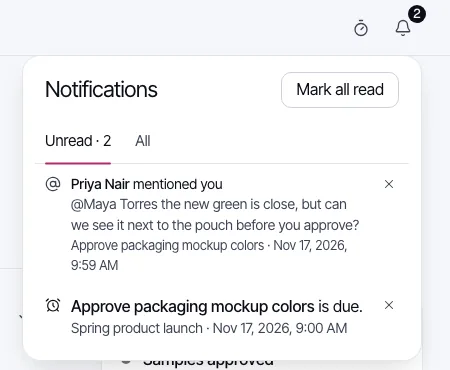
The bell sits in the top bar. A number on it counts unread alerts, and reads 9+ past nine. Press it to open Notifications, which has two tabs: Unread with its count, and All.
- A reminder reads "<task> is due." with its project and the time it fired. Click it to open the task and mark it read.
- A mention reads "<name> mentioned you", with the start of the comment and where it was written. Click it to open the comment.
- Press the X on an alert to dismiss it without opening it.
- Mark all read clears the unread reminders. Mentions are cleared one at a time.
- When two or more fired reminders belong to overdue tasks, they fold into one row, "Reminders for N overdue tasks". See them in Today opens the Overdue card, and Show N lists the reminders.
An empty Unread tab says "No new notifications." An empty All tab says "Nothing has fired yet."
Reminders on a task#
A reminder is an alert tied to one task. Open a task and find Reminders. It lists the task's reminders and has three ways to add one:
- Automatic. Every task with a date and a time gets one for you. You choose when in Settings, below.
- Relative. Set a number of minutes, hours or days before the task's due time, then press Add. This needs a task with a time on its due date.
- Absolute. Pick a date and time, optionally set it to repeat, and press Add.
Remove deletes a reminder. A repeating one also has Stop repeating. In Quick Add you can type !30m for a reminder thirty minutes from now, or !30mb for thirty minutes before the due time. See Quick Add and Dates, repeats and reminders.
Turn on browser push#
Without push, reminders show only while Yipadoo is open. With push, your browser shows them even when Yipadoo is closed.
- Open the account menu and choose Profile and settings, then the Notifications tab.
- Under Reminders, press Turn on beside Browser push, and allow notifications when your browser asks. You can also press Enable browser notifications at the top of the bell.
- The status reads Enabled, Off, Blocked in this browser or Not available here.
Under Automatic reminders, choose At time of task (the default), 5, 15, 30 or 45 minutes before, 1 or 2 hours before, 1 or 2 days before, or No automatic reminder.
Push also carries mentions, daily summaries when you turn them on, and Team Inbox alerts.
Daily summaries#
A daily summary is a saved recap of one day: the tasks you finished, the time you tracked with the Yippee Timer, and a line for each project you moved.
Open Progress under Tools in the left rail and choose the Daily summaries tab. Each day is a row. Open one to see Completed tasks and Projects moved. A note says "Updates until midnight" while the day is open and "Final for this date" afterwards. Your first summary appears after your Summary end hour.
Until your first summary exists, the tab says "No daily summaries yet." with a Change Summary end hour link to Settings. The list starts with 30 days, and Show all N summaries loads the rest. All daily summaries at the top of an open summary takes you back to the list.
Two notices mean a summary may be missing late changes. A row marked "Snapshot may be incomplete", and an open summary whose note reads "Saved snapshot. Late changes may be missing.", are the same case: Yipadoo could not rebuild that day at midnight, so it kept the last copy it saved, and anything changed after that copy may not be in it. A day with nothing finished and no timer time reads "A quiet day. Your summary is here whenever you need it." A date with no saved summary reads "No summary was saved for this date."
Free keeps 7 days of activity, so older summaries read "This date is outside your Activity history."
Choose when it runs#
In Profile and settings, open the Notifications tab and find Daily summaries.
- Turn Daily summaries on or off.
- Tick the Summary days. Monday to Friday is the default.
- Set the Summary start hour and Summary end hour. The defaults are 9:00 and 17:00, and the end hour must be later than the start.
- Turn on Summary push if you want a browser notification when a summary is ready. It needs browser push turned on above, and a quiet day stays in the app.
- Press Save summary schedule.