
Settings reference
Every tab and card in Yipadoo Settings, with its options and defaults, from Profile and Plan to sign-in, notifications, the Timer and connections.
Settings holds your personal choices: your profile and plan, how Yipadoo looks, when it notifies you and how you sign in. To open it, open the account menu at the foot of the left rail and choose Profile and settings. The Help and shortcuts item in the same menu opens Help instead. See Get help and report a bug.
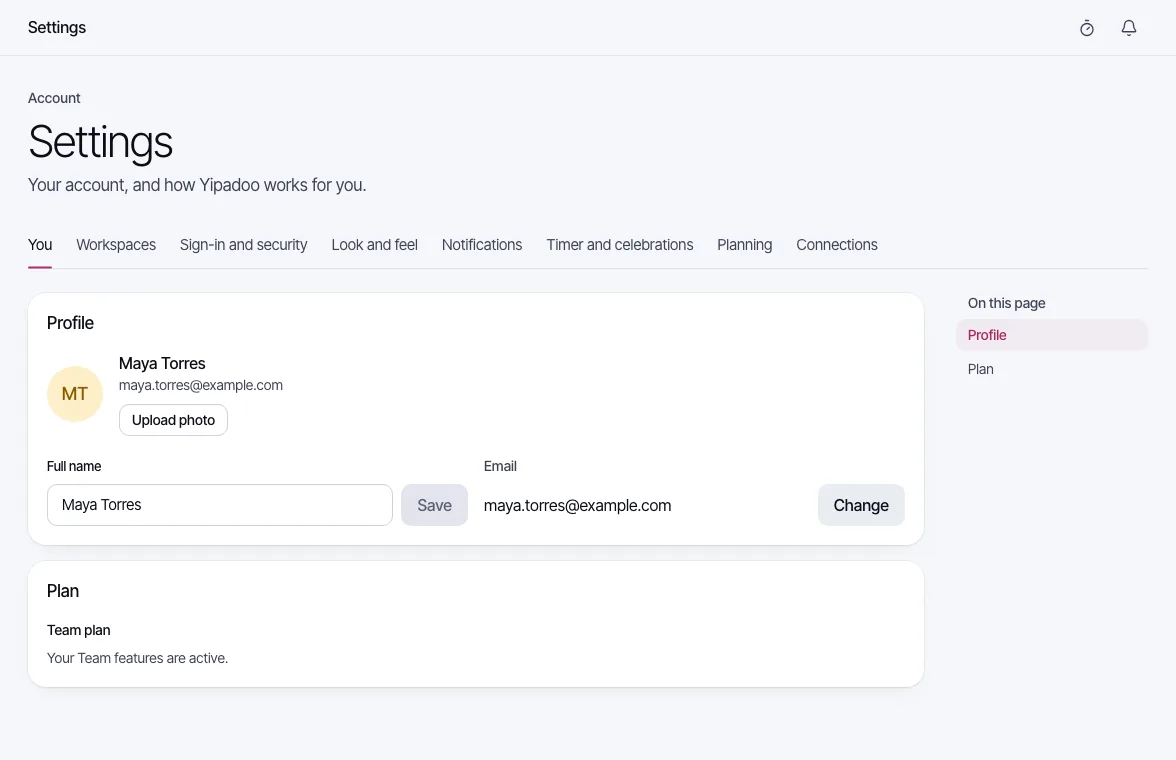
Settings has eight tabs, and a ninth, Billing, when your account can start a paid plan. Click one, or move between them with the arrow keys, Home and End. The On this page list beside the cards jumps to a card in the open tab. Most choices save the moment you make them. A form with its own button, such as Save or Update password, saves when you press it.
The account menu#
The account menu also has a Theme group with Light, Dark and System, then Report a bug or ask for a feature and Sign out. The app version sits at the bottom. On a phone the menu is in the navigation drawer.
You#
| Card | What it holds |
|---|---|
| Profile | Your photo, Full name and Email. Upload photo (Change photo once you have one) lets you pick any image, crop it with the Zoom slider and press Save photo. Remove photo goes back to your initials. Edit the name and press Save. Change beside the email opens a form with New email and Current password, then Change email. Your address changes only after you open the links sent to both the old and the new address; see Confirm an email change. |
| Plan | Your plan (Free plan, Pro plan, Team plan or Beta access), the trial's days left and the subscription card. You choose a plan on the Billing tab. See Upgrade, pay and cancel. |
Workspaces#
Your workspaces lists every workspace you belong to with your role (Admin, Member or Guest). Each row links to the workspace and to People; admins also get Workspace settings. With none, it reads "You are not in a workspace yet. Create one from Projects." A Free account cannot create a workspace, though it can join one. See Workspaces.
Sign-in and security#
| Card | What it holds |
|---|---|
| Password | Current password, New password and Update password. A code box appears if you have an authenticator app. |
| Sessions | Every device signed in, with Sign out on all but this one. |
| Authenticator apps | Add up to two apps, with Add an authenticator app and Add a backup app, and Remove each. |
Sign in and security covers all three.
Look and feel#
Theme and start page#
| Option | Choices | Default |
|---|---|---|
| Theme | Light, Dark, System | System |
| Accent color | Ten swatches: Pink, Red, Orange, Amber, Green, Teal, Blue, Indigo, Purple, Graphite. Hover a swatch to read its name. | Pink |
| Start page | My work, Inbox, Today, Upcoming, or any workspace or project. Type part of a name to search. | My work |
| Default detail | Focused or Full, for screens you have not chosen on yet. Kept in this browser. | Focused |
If the start page you chose can no longer be opened, Today opens and says so.
Glossary#
| Option | Choices | Default |
|---|---|---|
| Show glossary highlights | On or off. On, the first use of each glossary term in each paragraph, heading, list item or table cell of notes, comments, Briefs and posts, and in a task's title on its own panel, is underlined with dots, and opens a card with what it means. Saved to your account, so every device follows it. | On |
See Highlights and the term card.
Dates and time#
| Option | Choices | Default |
|---|---|---|
| Time format | 24-hour, 12-hour | Your browser's clock, otherwise 24-hour |
| Date format | MM-DD-YYYY, DD-MM-YYYY, YYYY-MM-DD | Your browser's format, otherwise MM-DD-YYYY |
| Time zone | Press Change and pick a zone. Every date and reminder follows it. | Your browser's zone when you signed up |
| Week starts on | Monday to Sunday | Your browser's week, otherwise Monday |
| 'Next week' means | Monday to Sunday | Monday |
A new account takes your browser's formats once, without asking. If your browser's formats still differ from the stored ones and you never chose your own, a box offers a button that reads "Use" and the formats, such as "Use DD-MM-YYYY and 24-hour time", and a Keep mine button.
Notifications#
Daily summaries#
This card controls the saved recap of your day.
| Option | Choices | Default |
|---|---|---|
| Daily summaries | On or off | On |
| Summary days | Monday to Sunday, as checkboxes | Monday to Friday |
| Summary start hour | Any hour | 9 AM |
| Summary end hour | Any hour later than the start | 5 PM |
| Summary push | On or off. Browser push must also be on in Reminders. | Off |
Press Save summary schedule to keep your changes. The recap is saved after the end hour.
Team Inbox alerts#
This card sets how new items in Needs you reach you.
| Option | Choices | Default |
|---|---|---|
| Send pushes | Right away, Daily digest, Off | Right away |
| Digest time | Every half hour; shown only for Daily digest | 09:00 |
| Quiet hours | On or off. Pushes wait until quiet hours end; a digest still arrives at its time. | Off |
| Quiet from, Quiet until | Every half hour; shown when quiet hours are on | 22:00 to 07:00 |
Reminders#
This card has two rows. Browser push shows a status, which reads Enabled, Off, Blocked in this browser or Not available here, and a Turn on button when it is off. It applies to this browser only. Automatic reminders sets the lead time for tasks with a date and time. The choices are At time of task (the default), 5, 15, 30 or 45 minutes before, 1 or 2 hours before, 1 or 2 days before, and No automatic reminder. See Notifications and reminders.
Timer and celebrations#
Timer lengths#
Enter whole numbers and press Save timer lengths. A change applies from the next round.
| Option | Largest | Default |
|---|---|---|
| Work (minutes) | 180 | 25 |
| Short break (minutes) | 60 | 5 |
| Long break (minutes) | 60 | 15 |
| Long break every (rounds) | 12 | 4 |
Celebrations#
Three switches, Yipadoo moments, Surprise moments and Sounds, are all on by default and kept in this browser. The last two go grey while Yipadoo moments is off. See Celebrations.
Planning#
The Goals card has two checkboxes, Enable personal Goals and Show Goals in Planning, and an Open Goals button. Enable personal Goals is off until you turn it on, and Show Goals in Planning is on unless you clear it. On Free you can hold one active Goal. Pro and Team allow up to 3 a quarter. See Goals.
Connections#
Connections is where you connect an AI assistant, choose what it may do, change its level with Change level, and remove it. See Connect an assistant. A line under Your connections links to Assistant changes, where changes from a Propose only connection wait for you.
Billing#
Billing is where you choose Pro or Team, pick Yearly or Monthly and start checkout. The tab shows only when your account can start a paid plan. See Upgrade, pay and cancel.