
Project Overview and Brief
Read where a project stands on the Overview, and keep its purpose, links, people, runbook and work rules on the Brief.
Every project has two pages that answer different questions. The Overview tab answers "where do things stand right now". The Brief answers "what is this project, and how do we run it", and it rarely changes.
Where the project stands#
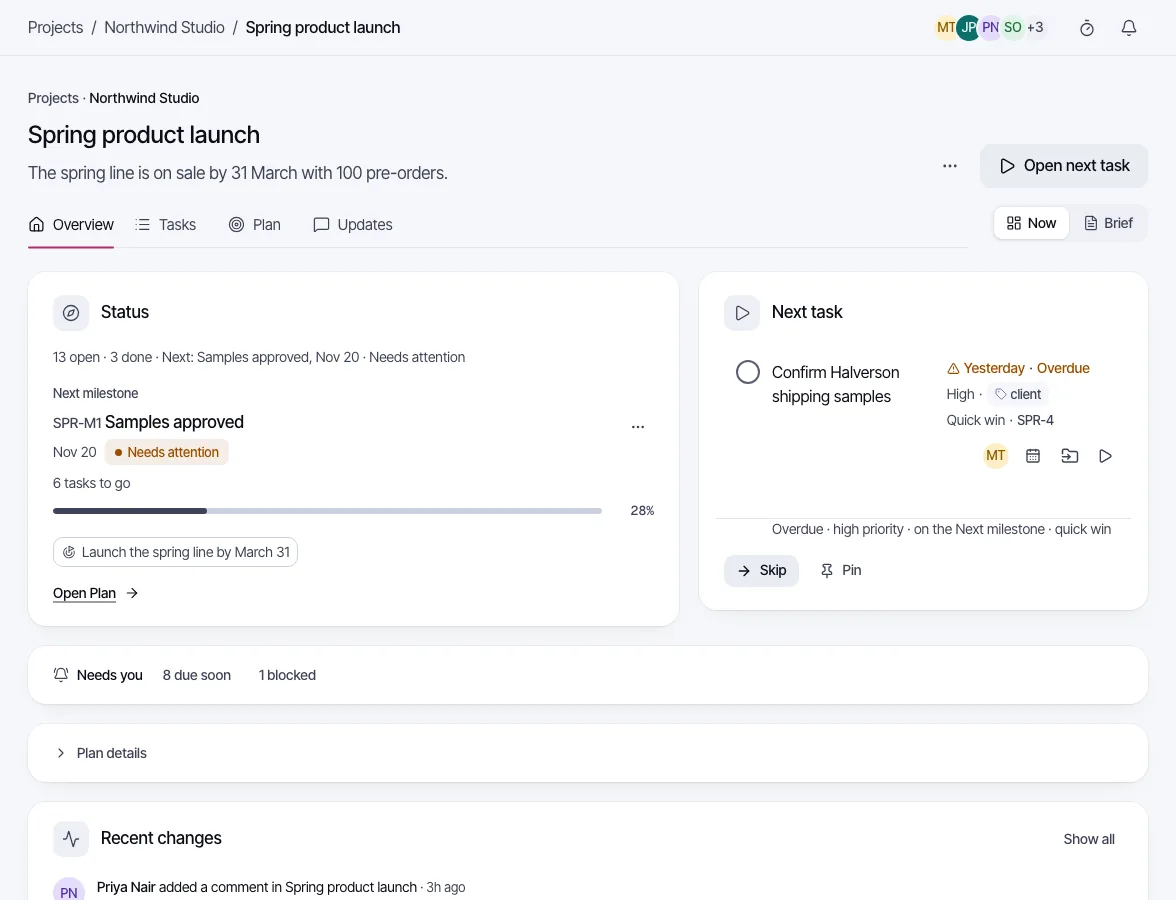
Open a project and stay on the Overview tab. Its Now view reads top to bottom, and gives you the next move before you start work. On a wide screen it runs in two columns; on a phone it is one. The button at the top, Open next task, jumps straight to the task the app suggests.
Status#
The Status card always shows the project's summary line: open and done counts, the next milestone and its health. Where planning is available on the project, it also shows the Next milestone with its date, a health pill, "N tasks to go" and a percent bar. A chip appears for each Goal the project serves; click it to open the Goal. Once the project has milestones, Open Plan takes you to the Plan tab.
Click the milestone's title to jump to it in Plan. Its ⋯ menu offers Postpone, Save plan, Mark as final milestone and Details and updates; each is explained in Milestones.
With no milestones yet, the card shows only the summary line. When every milestone is done it says "All milestones complete."
Next task#
Next task is one task the app picks for you in this project, with a one-line reason such as "High priority". It considers only your own work. Focus on one task explains how the pick is ranked.
- Check the box to complete it.
- Click it to open it.
- Click Skip to see another.
- Click Pin to keep it as the pick, and Unpin to hand the choice back.
Needs you#
Needs you is a strip of counts for what waits on you: N due soon, N waiting on you and N blocked. Click a count to expand its list. Open Tasks or View all goes to the full list. Plan a task covers how a task becomes blocked or waiting. On a blocked task you can choose Open the blocking task or Remove this block. When nothing is waiting, it reads "All clear".
Plan details and Recent changes#
Plan details is folded by default. Open it to see the Current Phase with its health, later milestones, the Next Phase with its target date, and a count of completed milestones. Recent changes is a short activity list; it reads "Nothing has changed yet." on a new project.
What the project is#
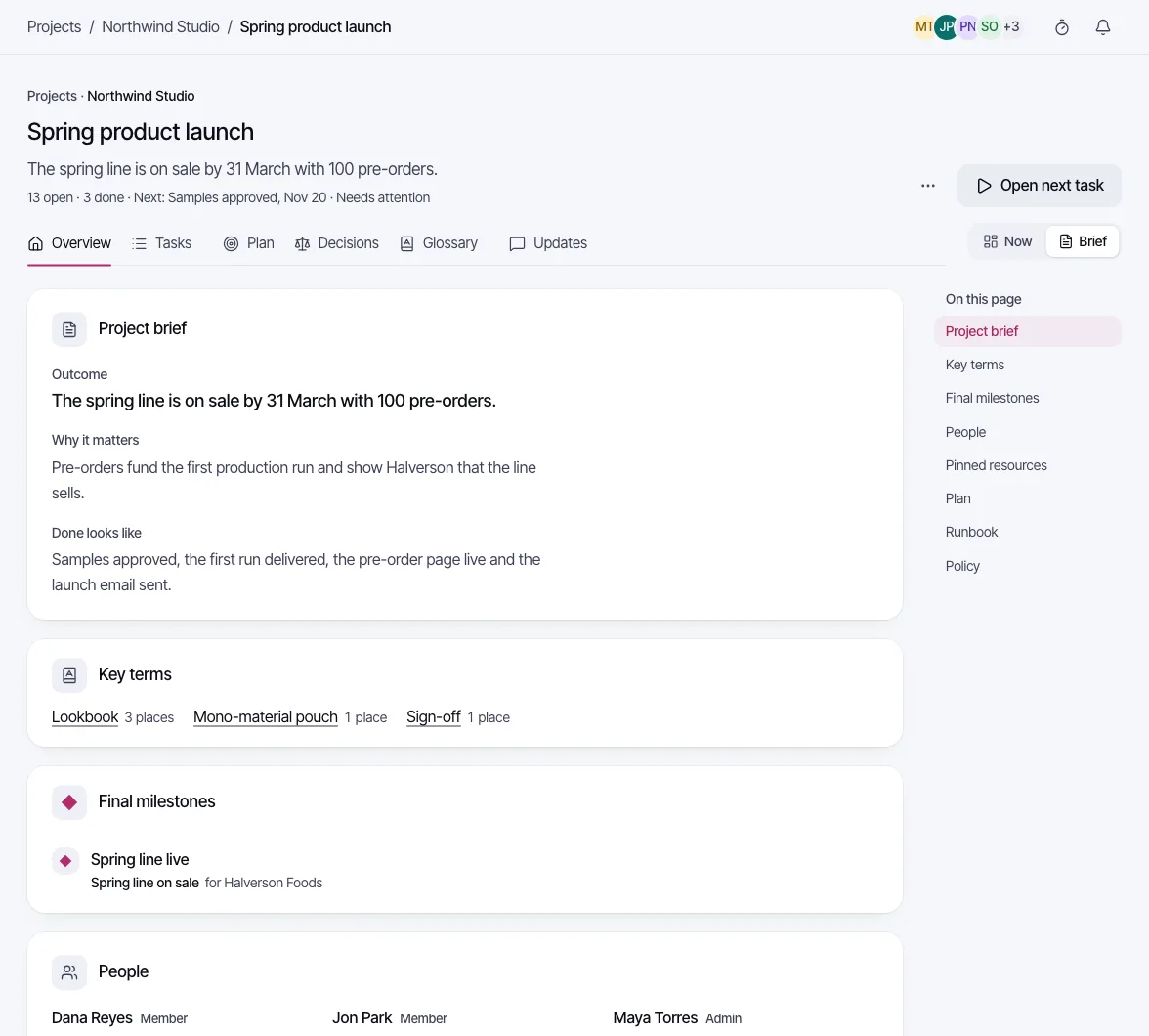
Switch from Now to Brief at the top of the Overview tab. The Brief is a single page a new person can read to understand the project. Click any text on it to edit in place; each field saves on its own.
Outcome, Why it matters and Done looks like#
The Project brief card holds three short texts:
- Outcome: what this project should achieve. Its first line also shows under the project's name.
- Why it matters: why the project is worth doing now.
- Done looks like: what must be true to call the project done.
Key terms#
When the project uses glossary terms, a Key terms card under the project brief lists up to ten of the most used, most used first, each a link to its term with how many places use it. See Key terms on the Brief.
Pinned resources#
Pinned resources keeps the links your team needs in one place.
- Click Add resource.
- Fill Resource name, Resource URL (it must start with
http://orhttps://) and, if you like, Resource description. - Click Pin resource.
Click a line's name, URL or description to edit it in place. Use its Open link to visit it, or remove it and confirm.
People and the other cards#
People is read only. It lists everyone who can reach the project with their role (Admin, Member, Guest, Owner or Collaborator), and the Phases and milestones each person is accountable for. You set accountability on the Plan tab, not here.
Final milestones lists the promises the project has made; see Final milestones. Plan points to the Plan tab.
Runbook and Policy#
The Runbook and Policy cards are folded by default. Each is a Markdown page: the Runbook says how the project's work gets done (steps, checklists, who to call), and the Policy says what needs approval, what never happens and who decides.
- Open the fold and click the text to edit it.
- Pick an owner in the owner menu. The default is No owner.
- Click Mark reviewed today after you check it. The header then reads "Last reviewed" with the date.
Work rules#
The Work rules card comes right after the Policy, folded, with a line that sums it up, such as "Gate on · New tasks: Hard to undo, Customers". It holds:
- Hard tasks need a decision or sign-off: with it on, a task marked Hard to undo completes only once it is signed off or an admin links an Accepted decision to it.
- New tasks start as: the reversibility each new task in the project gets, or Not set.
- New tasks reach: the blast radius each new task gets, or Not set.
Each saves as soon as you change it. Only a workspace admin changes them, or a personal project's owner; everyone else reads them. See Hard to undo and sign-off.
Note: The Brief is read only on an archived project and for workspace guests. The Runbook and Policy are the exception: anyone who can write to the project can still edit them after it is archived. Work rules stay as they are on an archived project.
Related#
- Projects covers the header and tabs around these pages.
- Milestones covers the Plan tab that feeds the Status card.
- Final milestones covers the promises the Brief lists.