
Dates, repeats and reminders
Set a task's due date, repeat, start date, deadline and duration, type dates in plain words, and add reminders that fire before or at a time.
A task can carry several dates, each with its own job. Due is the day you plan to do it, and it puts the task on Today and Upcoming. Repeat brings it back on a schedule. Start date is the first day you can begin. Deadline is the hard cutoff. Duration says how long it takes. Reminders tap you on the shoulder. All of them live in the task panel.
All dates follow the time zone under Dates and time in Settings.
Due#
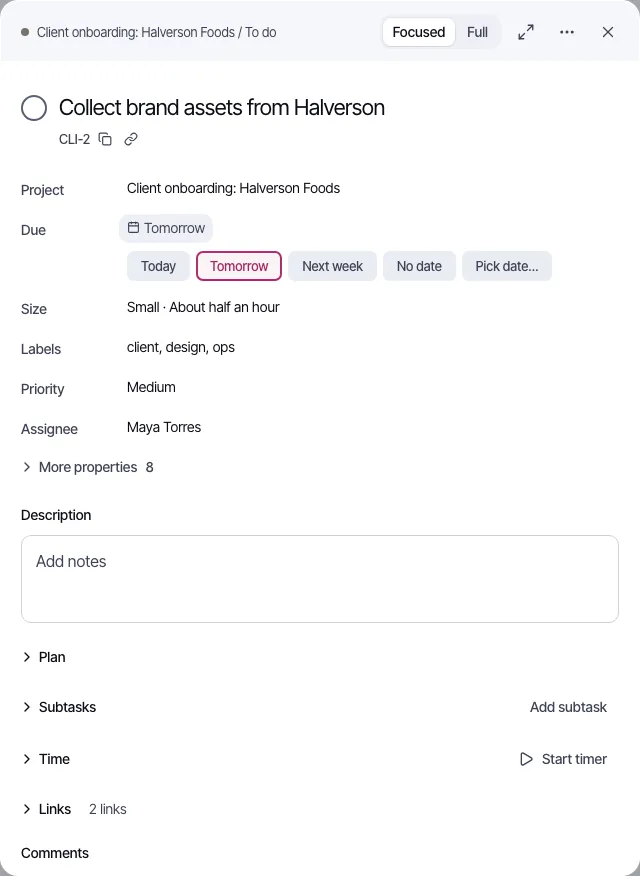
- Open the task and find Due.
- Click Today, Tomorrow or Next week. No date clears it.
- For anything else, click Pick date…, type a phrase such as
friday 4pmand pressEnter. A preview shows what Yipadoo understood, or "Not recognized".
A date that is not one of the three chips appears as its own chip, with a ↻ if it repeats. Next week means the weekday you pick under 'Next week' means in Settings. The Task actions menu has the same choices under Due, plus This weekend.
Phrases you can type#
The same phrases work in the Due field and in Quick Add.
| You type | You get |
|---|---|
today, tomorrow, yesterday |
That day |
friday or fri |
The coming Friday, or today if it is Friday |
next friday |
The Friday after that one |
this weekend |
The coming Saturday |
next week |
The weekday set in Settings |
in 3 days, in 2 weeks, in 4 months |
That far from today |
in 2 hours |
A date and a time, two hours from now |
jan 27, 27 jan, january 27th |
That date, next year if it has passed |
mid january, end of month |
The 15th of that month, or the last day of this month |
2026-12-01, 12/01/2026 |
A full date (month first, year required) |
tomorrow 4pm, friday at 16:00 |
A date with a time |
Repeat#
Repeat is a menu on the task. Choose Daily, Weekdays, Weekly on a day, Monthly on the a date, Yearly on a date, or Don't repeat. The choices start from the task's due date, or from today if it has none. Custom… opens a field where you type a rule, with a preview of the rule and its first date.
Custom rules you can type:
every day,every weekday,every week,every month,every yearevery other monday at 3pm,every 2 weeks,every mon, wed, frievery 3rd friday,every last day,every jan 31- A bound at the end:
starting jan 5orending dec 31(untilworks too) every!in place ofeverycounts from the day you finish it, not the day it was due
When you finish a repeating task, it moves to its next date instead of leaving.
Start date#
Start date is the first day you can begin. Pick a day from the calendar; Clear removes it. It cannot be after the due date or the deadline, and a repeating task cannot have one. If you move a due date or deadline earlier than the start, the start moves with it, and making a task repeat clears its start. You can find tasks by start date with starts before: and starts after: in Filters.
Note: Start date needs Pro or a Team seat. On Free the row still shows, but saving a start date is refused with a message that says it requires Pro.
Deadline and duration#
Deadline is a hard cutoff, separate from the due date you plan around. Type a day such as friday and press Enter; Clear removes it. A deadline is a day only, and it cannot repeat. In Quick Add, put it in braces: {friday}.
Within seven days, the task's row shows a countdown such as "Deadline in 3 days", and Today brings close deadlines forward in its Urgent attention and Upcoming deadlines sections.
Duration appears under Deadline once the due date has a time. Type for 45 min, for 1h 30m, for 2 hours or for 1 day and press Enter. It can be at most 24 hours. Today and Upcoming add up the durations of their tasks as planned time.
Reminders#
A reminder is an alert. The Reminders row lists each one with its kind, its time, Stop repeating if it repeats, and Remove. There are three kinds.
- Automatic. Yipadoo makes it for you on a task that has a date and a time. Its lead time comes from Automatic reminders under Reminders in Settings, from At time of task to 2 days before, or No automatic reminder to turn it off.
- Relative. You choose how long before the due time: a number and minutes before, hours before or days before, then Add. It needs a due date with a time.
- Absolute. A fixed moment. Click Pick a date and time, choose when it repeats if it should (Daily, Weekdays, Weekly, Monthly, Yearly, Custom… or Don't repeat), then Add. It does not depend on the due date.
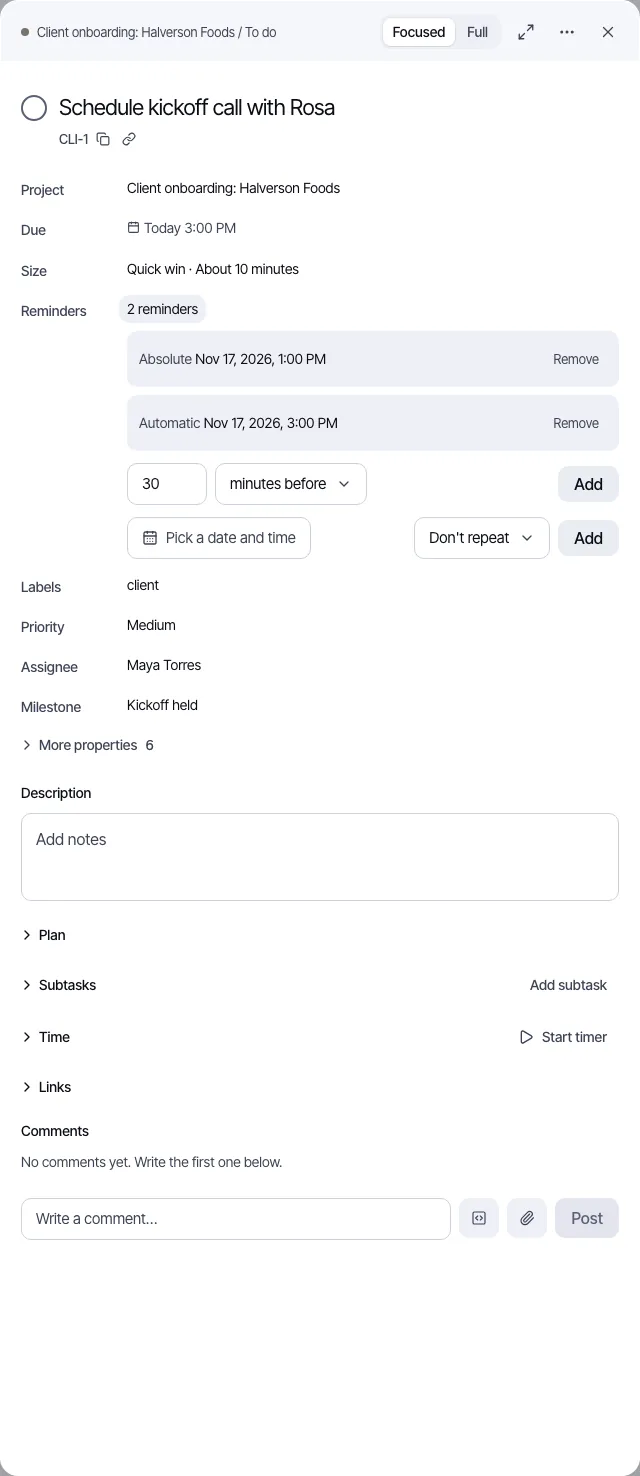
Automatic and Relative reminders are tied to the due time: they move with it and are removed if you clear the due date or its time. An Absolute reminder is left alone.
In Quick Add, !30m sets an absolute reminder 30 minutes from now, !30mb or !30m before a relative one before the due time, and !6pm or !mon 9am a moment. See Notifications and reminders for how they reach you.