
The task panel
A map of the task panel: how it opens, the Focused and Full views, Maximize, and where each property of a task lives.
The task panel shows everything about one task and lets you change it without leaving your list. This page names each part of the panel and sends you to the page that covers it.
Open and close it#
Click a task's title or row in any list. The panel slides in from the right. With it open, J and K switch to the next and previous task in the list behind it.
Close it with Esc, with the X at the right of the top bar, or, when the panel floats over the page, by clicking outside it. If a field inside the panel is open, Esc closes that field first.
On a very wide window the panel sits beside the list instead of over it, so you can keep working in the list. On a phone it fills the screen.
The top bar#
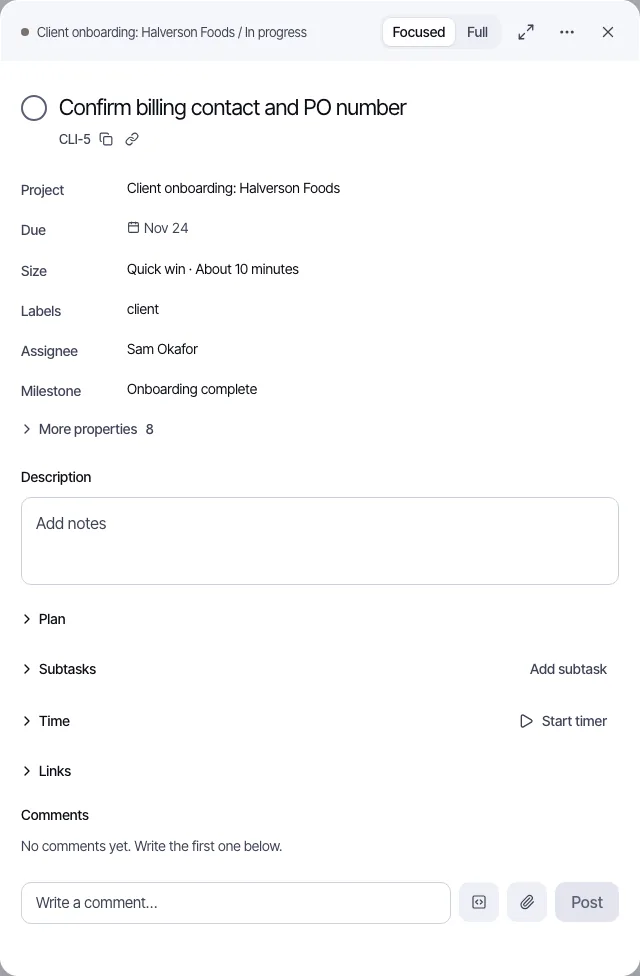
From left to right, the top bar has:
- The task's project, and its section if it has one, written as "Project / Section".
- The Focused and Full switch.
- The Maximize button.
- The three-dot Task actions button, which opens the Task actions menu: Edit, Due, Priority, Move to, Labels, Complete, Duplicate, Copy link and Delete, plus the template entries.
- The X, to close the panel.
Under the bar sit the round checkbox, the title (click it to edit) and the task's short reference with two small buttons that copy the reference and copy a link to the task.
Note: In a workspace where you are a guest, the panel shows a View and comment chip. You can read the task and comment on it, but the editing controls are not there.
Focused and Full#
The switch in the top bar sets how much the panel shows.
- Focused lists each property that has a value as a label and value. Click a value to open its editor right there. Properties with nothing set are folded under More properties, which shows how many there are. Plan starts folded unless it has something written in it, Links starts folded, and Subtasks and Time stay folded until they hold something.
- Full opens every property editor, and starts Plan and Links open. An empty Subtasks or Time block still starts folded.
This browser remembers your choice. Default detail in Settings sets it for screens you have not chosen on yet. On a phone the panel always opens Focused.
Maximize#
The Maximize button fills the space to the right of the left rail. Its tooltip reads Maximize, and Back to the side sheet once the panel is maximized. In Full, a maximized panel uses two columns: properties on the left, blocks on the right. This device remembers the choice. A phone has no Maximize button.
Where each property lives#
The properties sit in one list, in this order. Click a value (Focused) or use the open editor (Full).
| Property | What it holds | Page |
|---|---|---|
| Project | Where the task lives; picking another project moves it | Describe and organize a task |
| Due | The day, and a time if you want one | Dates, repeats and reminders |
| Size | Quick win, Small, Medium or Big | Describe and organize a task |
| Repeat, Start date, Deadline, Reminders | A schedule, when it can begin, its hard cutoff, and alerts; Duration sits with Deadline once the due date has a time | Dates, repeats and reminders |
| Parent task, Labels, Priority, Assignee | How the task is organized and who has it | Describe and organize a task |
| Milestone, Related project | The plan checkpoint it moves forward, and one other project it points at | Link a task to a milestone or project |
| Waiting on | What holds it up | Plan a task |
| Reversibility, Blast radius | Easy or Hard to undo, and who the work reaches: Just me, Team, Customers or Public | Hard to undo and sign-off |
Below the properties come the blocks, each with its own heading:
- Description holds free-form notes. See Describe and organize a task.
- Sign-off shows on an open Hard task in a project whose work rules gate it, and on any open task with a sign-off request or a sign-off. It says what the task needs before it can be completed, with Ask for sign-off, Sign off and Withdraw for the people who may use them. See Hard to undo and sign-off.
- Plan holds the Game plan, Done looks like, and How'd it go? once the task is finished. See Plan a task.
- Subtasks lists the steps inside the task.
- Time shows time recorded with the Yippee Timer.
- Links and Comments are covered in Discuss and attach.
Some rows appear only when they apply. Assignee shows when someone besides you could take the task. Size, Start date, Waiting on and the Game plan need Pro or a Team seat. On Free the rows still show, but saving one is refused with a message that says it requires Pro.
Open a task from a link#
A task's link is /app/task/ followed by the task's id. It opens the task's project page, or the Inbox, with the panel already open. If the task was deleted, or sits in a project you cannot see, the page says "This task isn't available."
To get the link, click the small link button beside the task's reference, or choose Copy link from the actions menu.