
Create your account
Sign up with your email, start the 14-day Pro trial with no card, sign in, and take the first-run steps.
An account takes your email address, a name and a password, and about two minutes. It starts a 14-day Pro trial, and no card is asked for.
Sign up#
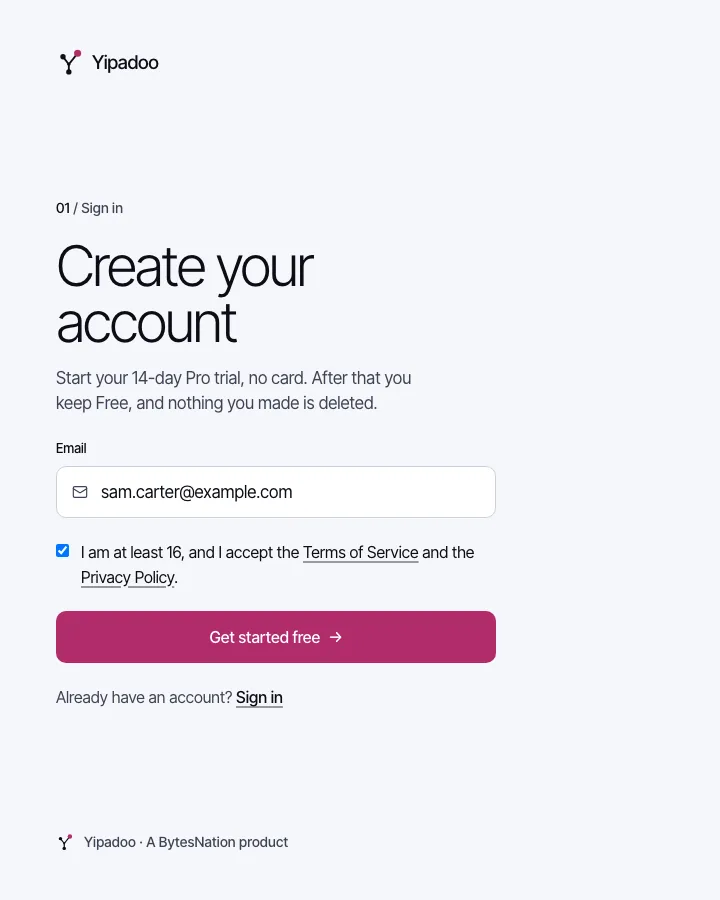
- Open the sign-up page from Get started free on yipadoo.com.
- Type your Email.
- Tick I am at least 16, and I accept the Terms of Service and the Privacy Policy. The button stays blocked until you do.
- Wait for the check under the box to finish, then press Get started free.
- Open the email Yipadoo sends, from [email protected]. Its link works once and lasts an hour. Nothing is created until you use it.
- On Finish your account, enter your Full name and a Password, then press Finish. The password needs at least 12 characters, with a lowercase letter, an uppercase letter, a digit and a symbol.
You are signed in, and the 14 days begin.
The page answers "Check your email" whether or not an account already uses the address. If an account does, no email is sent, so sign in instead. If no email comes, check your spam folder, then ask again: a new request sends a fresh link. Yipadoo sends at most three of these emails a day to one mailbox. If the page says "The check didn't pass" or "Too many tries from here", try again, waiting a minute if it asks.
The 14-day Pro trial#
During the trial you have Pro: unlimited projects, Phases, Final milestones, the Roadmap and Templates. A notice at the bottom right shows from day 10, with the days left, and reads "Your Pro trial ends tomorrow." on day 13. One more shows after the trial ends, for 30 days. Close a notice with its X: Yipadoo remembers that in this browser, and the next notice still shows. See plans on a notice opens Settings, Plan. After day 14 you move to Free on your own. Nothing is deleted and you can keep editing. Adding beyond the Free limits, such as a sixth active project, needs Pro. Settings, Plan shows how many days are left.
Sign in#
Open the sign-in page, enter your Email and Password, and press Sign in. The app opens your Start page, which is My work unless you changed it in Settings.
- Email and password always work.
- Sign in with Google is on the sign-in page. It is the only provider offered: there is no Microsoft or Apple button. Google signs you in to an existing account, or finishes a sign-up you started with that email address.
- If you added an authenticator app to your account, you are asked for the 6-digit code after you sign in.
- If you forget your password, press Forgot password? and Yipadoo emails you a link to choose a new one. It works once, within an hour.
Your first minutes in the app#
A new account may start on Start with one Goal. Press Set up my first Goal to get a starter Goal with three dated first steps and a Final milestone 13 days out, or press Skip. You can rename or change everything in it.
Home, the page the Yipadoo logo at the top of the left rail opens, can show two cards at the top:
- Pick your color. Choose one of ten swatches (Pink, Red, Orange, Amber, Green, Teal, Blue, Indigo, Purple or Graphite) and the app recolors at once. Press Keep Pink to leave the default. You can change it later under Settings, Look and feel, Theme and start page.
- Set up Yipadoo in five steps. The Get started checklist lists five steps, and each one that is not done has a button:
| Step | Button | What it does |
|---|---|---|
| Name your workspace | Name workspace | Opens New workspace, where you name it after your business, such as Ridgeline Dental. Creating one needs Pro or Team, as described below. |
| Plan a Goal | Plan a Goal | Opens the Goals page with the Plan a Goal form already open. |
| Add a Phase | Open a plan | Opens the Plan tab of one of your projects (not the Inbox or an archived project). With no project yet, the row reads "A Phase lives in a project's plan, so start with a project." and the button is Add a project first, which opens New project. |
| Add a task | Add task | Opens Quick Add. |
| Start the Yippee Timer | Open the timer | Opens the timer page. |
A step ticks itself when your account already holds one of the things it asks for: a workspace, a Goal, a Phase, a task, or a time entry of yours. A ticked step is struck through and loses its button, and a bar above the list counts the steps done. When all five are ticked the checklist goes away. Hide checklist puts it away in this browser, for your account. Someone who is a guest in every workspace they belong to never sees it.
You can skip the checklist and do only the step you need.
Personal projects or a workspace#
A new project is personal unless you pick a workspace for it. Only you see a personal project until you share it with someone. A workspace stands for a business. It holds team projects, people with roles, a Team Inbox and Contacts, and it runs on its owner's plan.
Creating a workspace needs Pro or Team, so you can make one during your trial. A Free account can join workspaces as a member or a guest. You can start with personal projects and move them into a workspace later.