
The Yippee Timer
Time your focus rounds from the top bar, log the minutes to a task, and review or fix your time on the Yippee Timer page.
The Yippee Timer runs focus rounds and logs the time to the task you are working on. Each task then shows how long it took, and the timer page totals your time by day, project and task.
You have one timer per account. It is stored on the server, so a round started on your laptop shows the same clock on your phone.
Start a round from the top bar#
- Press the clock button in the top bar. The Yippee Timer dropdown opens. On a phone the button only appears while a round runs; use the timer page to start one.
- Choose a Mode: Pomodoro or Flow.
- Under Task, pick the task or No task. The field starts on the task you last chose, else the next one due, else the one you timed last.
- Press Start.
While a round runs, the button becomes a pill with the clock and, from 768 pixels wide, the task name. During a break the pill reads "Round done, short break" or "Round done, long break". In the dropdown, Pause, Resume and Stop control the round. During a break, Skip break starts the next round at once. New task creates a task with a Task name and a Project, and Create and start starts timing it in one step.
You can also press Start timer on a task row or in the task panel's Time section. See Focus on one task.
Pomodoro and Flow#
Pomodoro runs rounds of fixed length with a break after each. The defaults are 25 minutes of work, a 5-minute short break, and a 15-minute long break after every 4th round. A finished round rolls into its break by itself. When the break ends, the timer rests until you press Start. The face shows "Focus", "Short break" or "Long break" and how many rounds are done. Pressing Stop ends the sequence and resets the round count.
Flow counts up with no break until you press Stop. The ring fills once an hour.
The mode you choose is the mode every start uses, wherever you start.
When a round ends#
A notice at the foot of the page reads "Round done. Yippee! Time for a break." when a work round ends. When a break ends, it says the break is over and asks if you are ready for the next round. Press the X to dismiss it. If you allowed browser notifications, you also get one there. Yipadoo asks the first time you start a round. A bell sounds while Yipadoo moments and Sounds are both on in Settings. See Celebrations.
The timer page#
Open Yippee Timer under Tools in the left rail. The page has four parts: the Timer, Timer lengths, Stats and History.
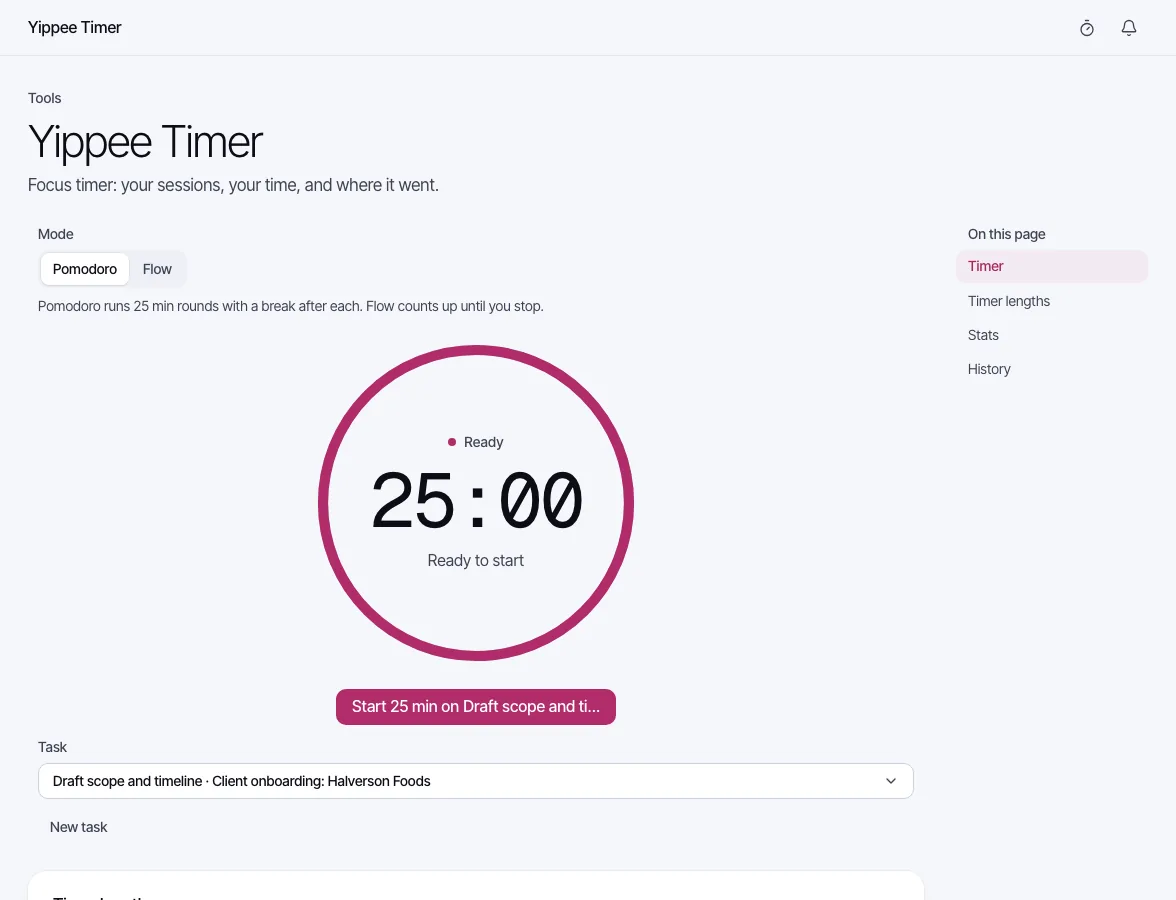
Timer lengths has four fields. Work (minutes) runs 1 to 180, Short break (minutes) and Long break (minutes) run 1 to 60, and Long break every (rounds) runs 1 to 12. Press Save timer lengths. A change applies from the next round; the round under way keeps its length. The same form is in Settings, under Timer and celebrations.
What gets logged#
The timer logs work time to the task the round ran on. A round that finishes logs its full length. Pressing Stop logs the work done so far, and a stop within a second of the start logs nothing. Starting a new round while one runs closes the first and logs it. Breaks are never logged, and a round with No task logs nothing. One entry covers at most 24 hours.
Stats and history#
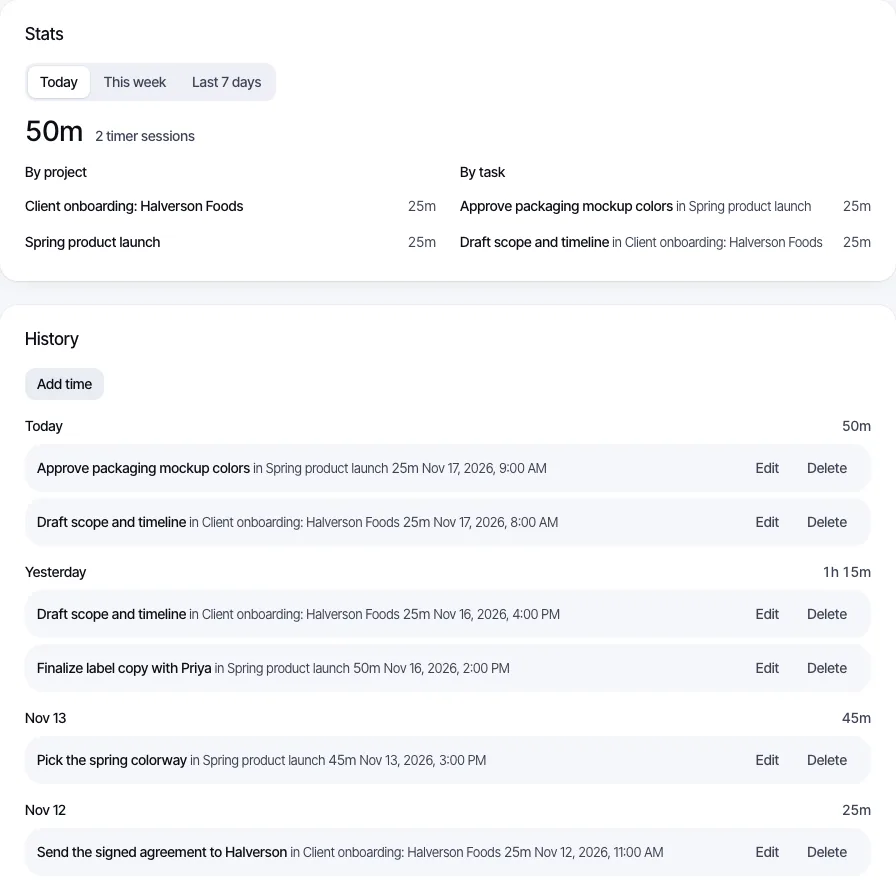
Stats has a Range of Today, This week or Last 7 days. It shows total time and the number of timer sessions, then By project and By task. Time you add by hand counts toward the total but not toward timer sessions.
History lists your entries by day, newest first, each day with its total. It shows the last 30 days; Show earlier reaches further back. Free reads 30 days of timer entries; Pro and Team read all of them (see Plans and pricing).
Add time by hand#
- In History, press Add time.
- Pick a Task. Finished tasks are marked "completed".
- Set when it Started, then the number of minutes, from 1 to 1,440.
- Press Save.
An entry cannot end in the future. Each entry has Edit, which changes the minutes, and Delete, which asks "Delete this entry?". Only the person who logged an entry can change it.
Time on a task#
Open a task and find its Time section. It reads "No time tracked" or "25m tracked", with Start timer or Stop timer. N entries lists who logged what, for anyone who can see the task. Only one round runs at a time, so starting one on another task ends the first.