
Sign in and security
Sign in with a password or Google, reset a forgotten password, review where you are signed in, and add an authenticator app for two-step sign-in.
You sign in to Yipadoo with your email and password, or with Google. You can also add an authenticator app, so someone who learns your password still cannot get in. The controls sit under Settings, on the Sign-in and security tab.
Sign in#
Open the sign-in page, enter your Email and Password, and press Sign in. Your Start page opens. That is My work unless you changed it under Look and feel in Settings.
The page also offers Sign in with Google. Google is the only provider offered, with no Microsoft or Apple button. It signs you in to an existing account for that address, or finishes a sign-up you already started with it. With neither, the page says no account uses the address and points you to Create your account. Create your account covers sign-up.
After too many wrong passwords the page tells you how long to wait. Resetting your password gets you past the wait.
Reset a forgotten password#
- On the sign-in page, press Forgot password?.
- Enter your Email and press Send reset link.
- Open the email. The link works once, within an hour.
- On Choose a new password, enter a New password and press Set new password.
You land in the app signed in, and every other device is signed out. If you have an authenticator app, you enter a code first. The page answers the same way whether or not an account uses the address, so it never confirms who has one.
A new password needs at least 12 characters, with a lowercase letter, an uppercase letter, a digit and a symbol.
Change your password#
- Open Settings and choose Sign-in and security.
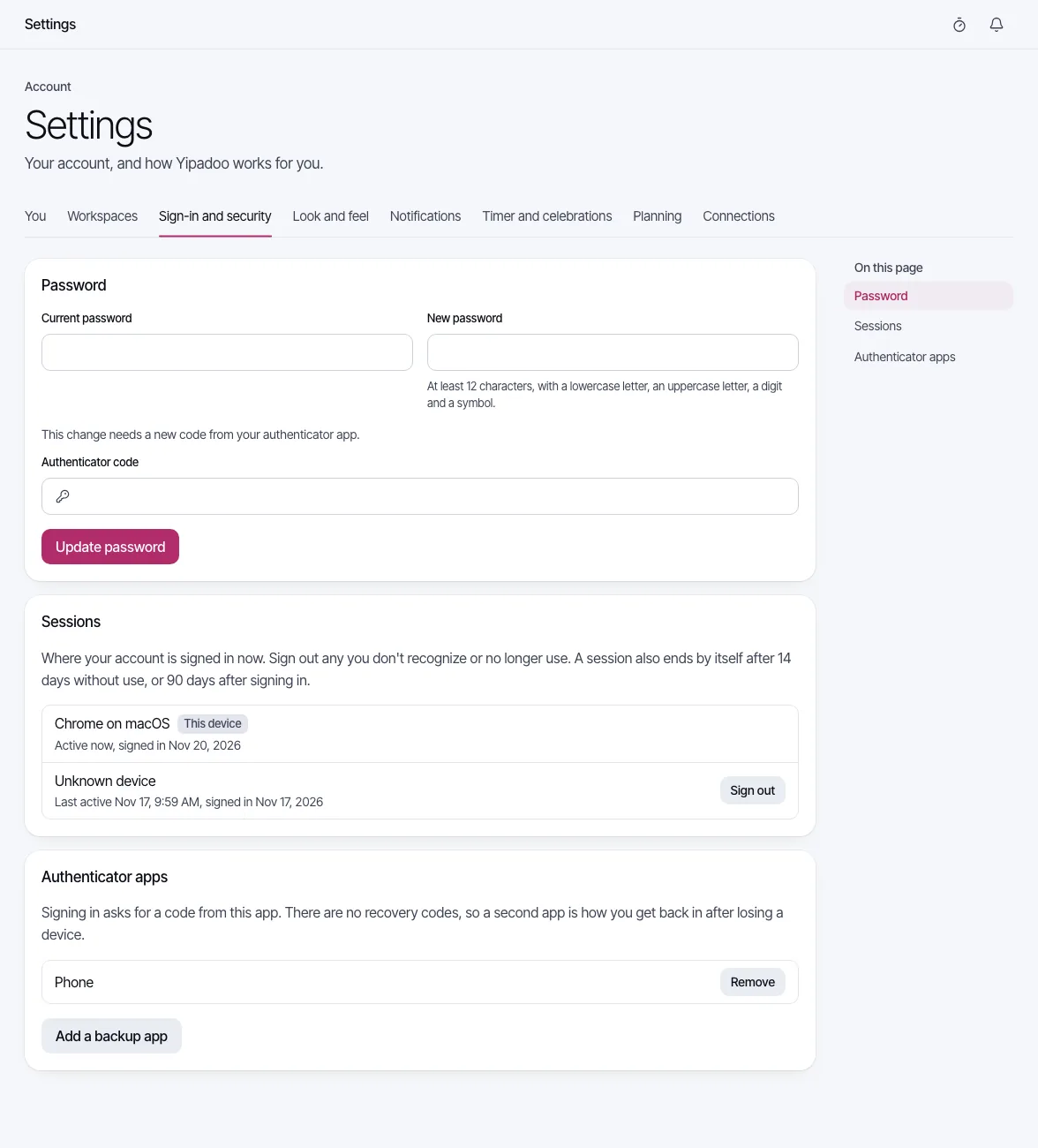
- In Password, enter your Current password and a New password.
- If you have an authenticator app, enter a code in the box that appears.
- Press Update password.
Yipadoo signs out your other sessions and leaves this one.
Confirm an email change#
To change your address, use Change beside Email in your Profile, enter the New email and your Current password, and press Change email. If you have an authenticator app, also enter its code in the box under the form. The form then reads "Confirm the change from both" addresses. Nothing changes until both confirm. The form refuses an address another account uses ("That email is already in use.") and your own ("That is already your email.").
- Open the mail "Confirm your Yipadoo email change" sent to the old address, and press Confirm email change on the page its link opens.
- Do the same with the mail sent to the new address.
The first confirmation reads "Confirmed from this address. Now confirm from the other address, with the link mailed to it." The second reads "Your email is now" the new address, with an Open Yipadoo link. The page works when you are signed out, so you can confirm from any device.
Each link works once and lapses after an hour. A used or lapsed link says "This link has expired or was already used. Start the change again from Settings." Start again from Profile. See When something goes wrong.
See where you are signed in#
Sessions lists every browser and device signed in to your account. Each row shows the device name, This device on the one you are using, and either Active now or the date it was last active and the date it signed in. Press Sign out on any row you do not recognize.
A session ends by itself after 14 days without use, or 90 days after you signed in. To leave the device you are on, open the account menu at the foot of the left rail and choose Sign out.
Two-step sign-in with an authenticator app#
Once an authenticator app is on your account, signing in also asks for the 6-digit code the app shows. You can add up to two apps.
Add an app#
- In Authenticator apps, press Add an authenticator app.
- Name it. The default is Phone. Press Continue.
- Scan the QR code with your authenticator app, or type the key into it.
- Enter the 6-digit code the app shows and press Confirm.
To add a second app, press Add a backup app and repeat. Adding it asks for a code from the app you already have.
Sign in with a code#
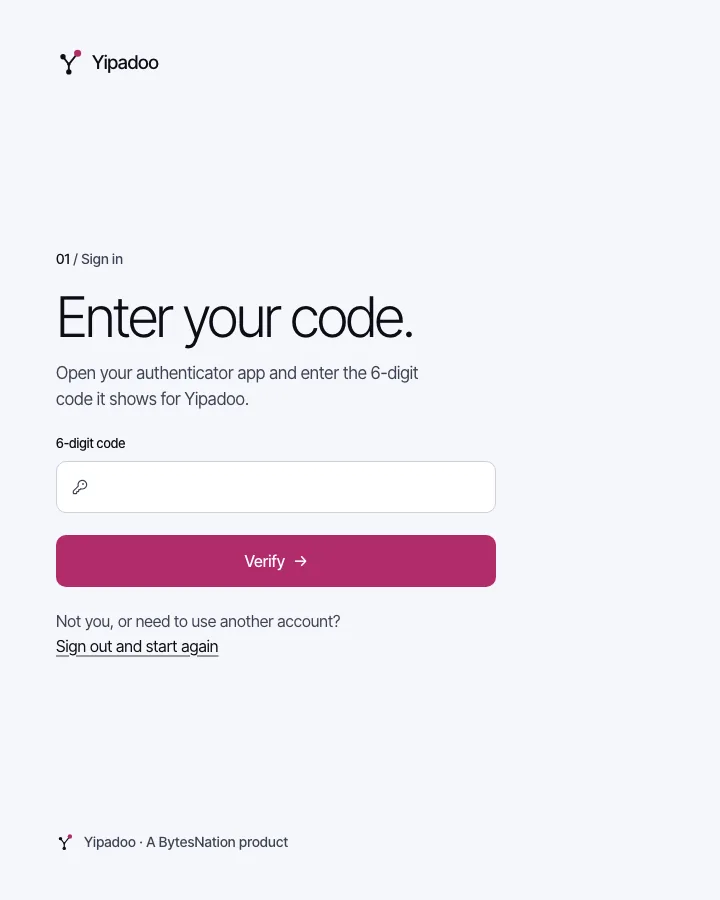
After Sign in, the page reads Enter your code. Open your app, type the 6-digit code and press Verify. With two apps, pick the one you are using by its name above the field. If a code fails, the page says "That code didn't work". Wait for the app's next code and try again. After too many tries, wait a minute.
Remove an app#
Press Remove beside the app and confirm. Its codes stop working at once. Removing one takes a code from your other app, or from the app itself when it is your only one.
Codes for sensitive changes#
On an account with an authenticator app, a few actions need a fresh code even though you are signed in. A box reads "This change needs a new code from your authenticator app." Enter the code and press the form's own button. Each code works once.
The first authenticator app you add needs none. The others that ask are:
- Changing your password or your email address
- Adding a second authenticator app, or removing one
- Deleting a workspace, transferring its ownership, or changing a member's role
- Inviting back a removed member with more access than they had, or resending such an invite, when Yipadoo asks
- Deleting an item forever from the Bin
- Changing paid seats
- Approving an assistant connection, raising a connection's level, or creating or rolling a connection token
If you lose your app#
A second authenticator app is your way back in.
- You have a second app. On Enter your code., choose the other app and sign in. Then remove the lost one and add a new backup.
- You have no other app. You cannot get past Enter your code. Email [email protected] from the address on your account. Support confirms the account is yours, then removes the app.
Tip: Add a backup app now, on a different device from your first.