
Project views
Look at a project's tasks as a List, a Board or a Calendar, then sort, group, filter and save the setup as a view for yourself or your team.
A project's Tasks tab shows the same tasks three ways: the List for working through sections, the Board for moving work across stages, the Calendar for seeing dates. The choice is yours alone and is remembered for each project.
Open a project, choose its Tasks tab, then choose List, Board or Calendar from the switch next to the tabs.
List#
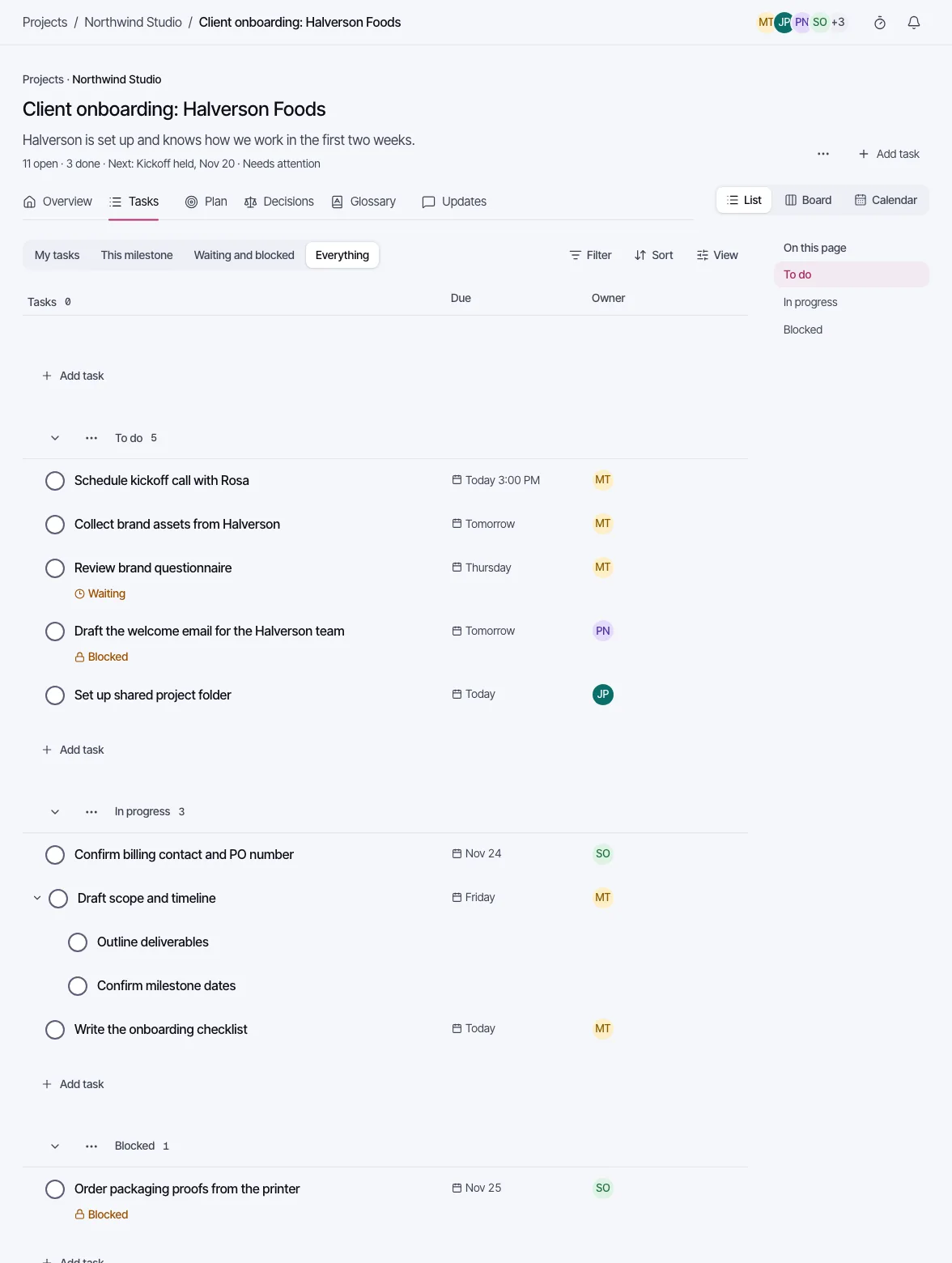
The List groups tasks into sections and keeps them in the order you drag them. Tasks that belong to no section sit under Tasks at the top.
- Press Add task under a section, type a name and press
Enter. - Add a section with
S, or with Add section at the foot of the List in the Full layout. Type a name and pressEnter. - A section's menu holds Rename, Move section up, Move section down, Save as template, Add from template and Delete. Drag a section by its grip to reorder it.
- Drag a task to reorder it or move it to another section.
Ctrl+]andCtrl+[indent and outdent the selected task. - Finished tasks sit in a Done fold at the foot of the List. View then Show completed opens it.
Sort#
Sort offers Manual (drag), Date, Priority, Name, Date added and Assignee. Manual is the default. Any other sort lists the tasks flat, so sections are hidden and a line says "Sections are hidden while sorted by date" with Back to manual order. The sort lasts for the visit. D, P, N and R sort by date, priority, name and assignee.
Group by#
Under View, Group by offers Section, Phase › Milestone, Assignee, Priority, Size and Due. It works on the List and the Board and is saved per project. Phase › Milestone and Size need planning access (Pro or a Team seat) and are left out without it. With planning access, a project that has an open milestone opens grouped by Phase › Milestone until you choose otherwise.
Drag between groups#
On a grouped List or a grouped Board, drag a task onto another group and it takes that group's value. A toast with Undo names the change: "Priority changed.", "Assignee changed.", "Size changed.", "Milestone changed." or "Task rescheduled." The same drag works from the keyboard; see Keyboard shortcuts.
- Grouped by Priority, Assignee or Size, the task takes the group's priority, assignee or size.
- Grouped by Phase › Milestone, the task leaves the milestone it was dragged from and joins the new one. A recurring task cannot go on a milestone, and a task already on that milestone is left as it is.
- Grouped by Due, only Today, Tomorrow and No date take a drop. Any other group answers "Pick a date instead."
- A subtask never moves between groups on its own. Open it to change the field.
When a drop is refused, the toast gives the reason and nothing changes.
Board#
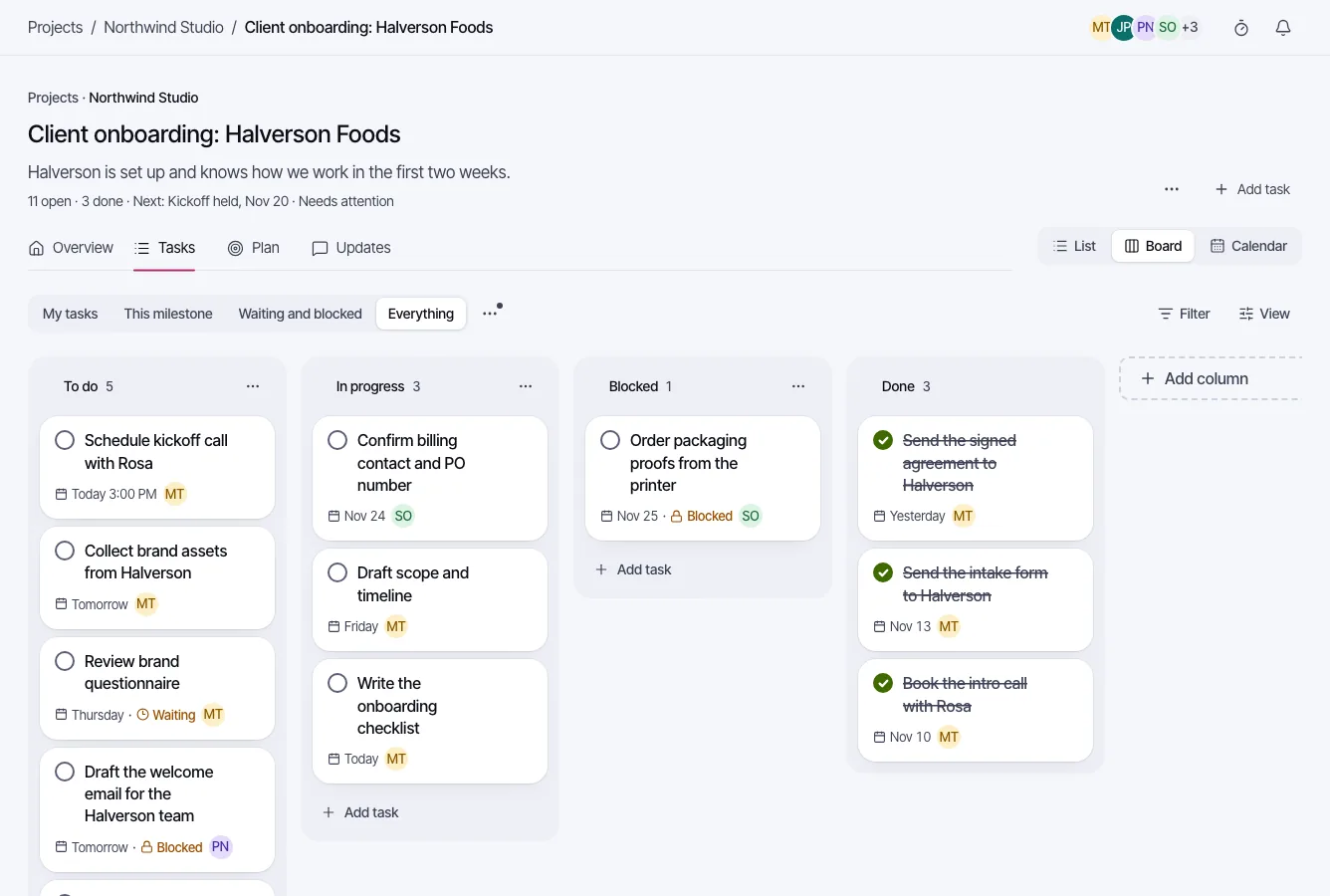
The Board turns each section into a column of cards. Tasks with no section sit in a To do column, and a built-in Done column lists finished tasks.
- Add a card at the foot of a column. Add column creates a new section.
- Drag a card to another column, or a column by its grip. Dropping a card on Done finishes it.
- A column's menu holds Rename, Move left, Move right, Save as template, Add from template, Delete and a column setting. The setting can mark a column as To do (it holds tasks with no section) or Blocked (a card dropped there asks "Waiting on what?").
- Grouping the Board makes a column of each value, and dragging a card changes that field, as described under Drag between groups.
The Board has no Sort. Subtasks are not cards.
Calendar#
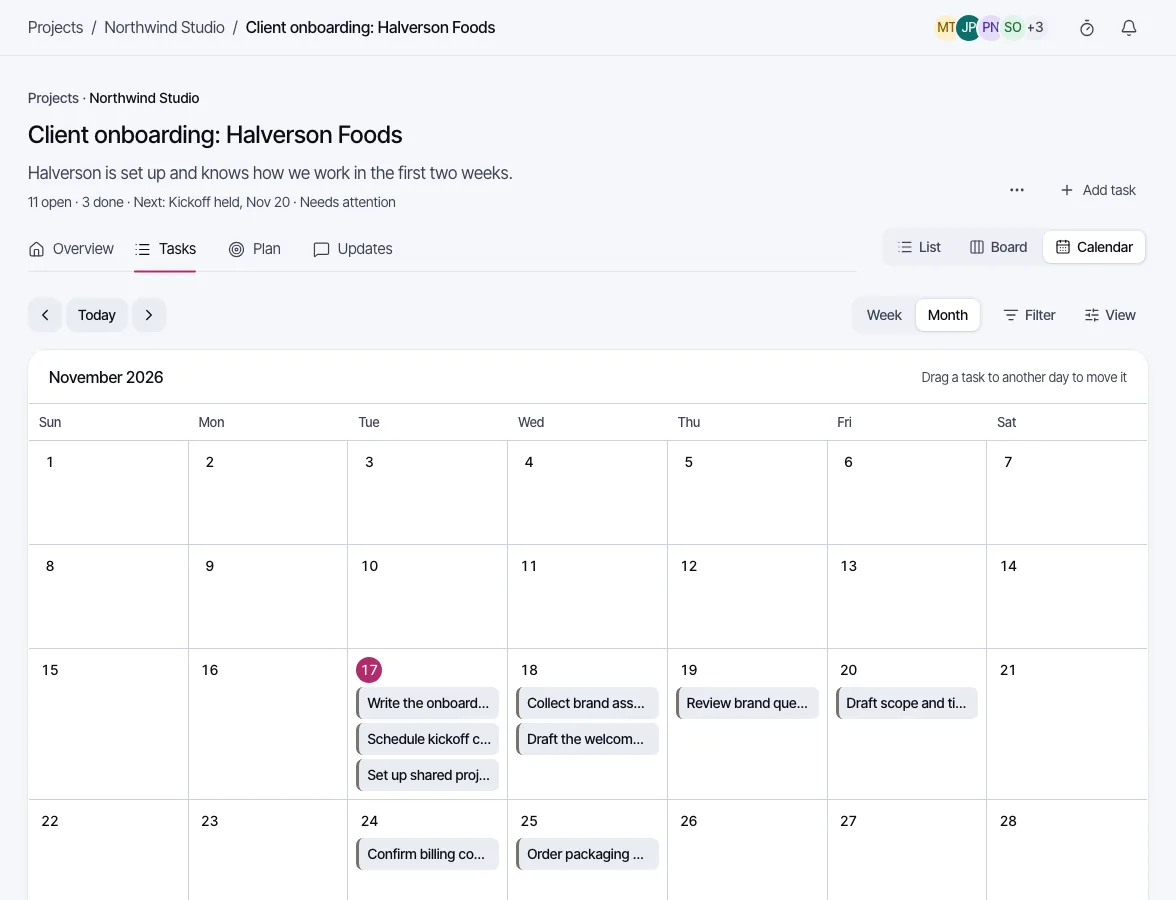
The Calendar places a project's open, dated tasks on a Week or Month grid. Switch between them at the top, and page with the arrows and Today.
- Week has an hourly grid and an All day row. A timed task is a block as tall as its duration, or an hour when it has none. Drag a block to another day or time, or drag its bottom edge to change the duration. Drop it on All day to make it an all-day task.
- Month shows up to three tasks per day under Focused, with a "+N more" button that expands the day. Full lists every task. Drag a task to another day. It keeps its time.
- Tasks with no date are not drawn. A line counts them and offers View in List.
- Each subtask appears on its own date, and completed tasks are left out.
Dragging needs permission to change the project. Someone who can only read it can still switch between Week and Month, for that visit only.
Filter and View#
Filter narrows what you see for this visit. Tick values under Assignee (including Unassigned), Priority, Label, Due (Overdue, Today, This week, No date), Reversibility and Blast radius, or choose one of your saved filters. A count shows on the button, and Clear filters resets it. On the List and the Board, tasks and cards stop dragging while a filter is on, though sections and columns still drag. See Filters.
View holds Group by on the List and the Board, Fields on all three layouts, and Show completed on the List only. Fields switches between Focused (compact rows) and Full (every detail). Focused is the starting choice, and Default detail in Settings changes it for screens you have not set. Inbox, Upcoming, Waiting and Assigned to me have the same Focused and Full switch in their headers, and so do the page of a label and the results page of a filter. See Read a task row for what it changes on a row. Your browser remembers each choice.
Saved views and team views#
On the List and the Board, a Views bar above the toolbar keeps your setups. Change the filter, grouping, layout or detail, and Save as new view appears; if you can edit the project, Save for the team shares the view with everyone on it. Saved views and team views covers the bar, the limits and the notices that can appear under it.