
Goal reviews and changes
Check in on each Goal every week, change a committed Goal with a recorded amendment, and set the Goal limits for a workspace.
Once a Goal is committed, the plan stays honest in two ways. A weekly review records how the Goal is going without touching the commitment. An amendment records the few changes a committed Goal still allows, with a reason and someone to approve it. Workspace admins set how many Goals the workspace commits each quarter.
Weekly reviews#
A weekly review is a short check-in on an Active Goal you own: on track or off track, what is in the way, and what changed this week. It gives you a dated record, and your team a quick read on the Goal.
- Click Planning in the left rail, then Weekly reviews. A badge on the Planning row reads "N reviews due" when Goals are waiting. The Review N Goals button on the Goals page opens the same queue.
- If you own Goals in more than one place, pick Personal or a workspace under "Review scope".
- Read the card: the Goal's title, its expected outcome and its target date. A "Needs a new date" chip means the Goal is past its target.
- Choose a Status: On track or Off track.
- If something stands in the way, write it in Blocker (optional, up to 500 characters).
- Write what changed in Note (required, up to 2000 characters).
- Click Save review.
- Use Previous and Next to move through the queue.
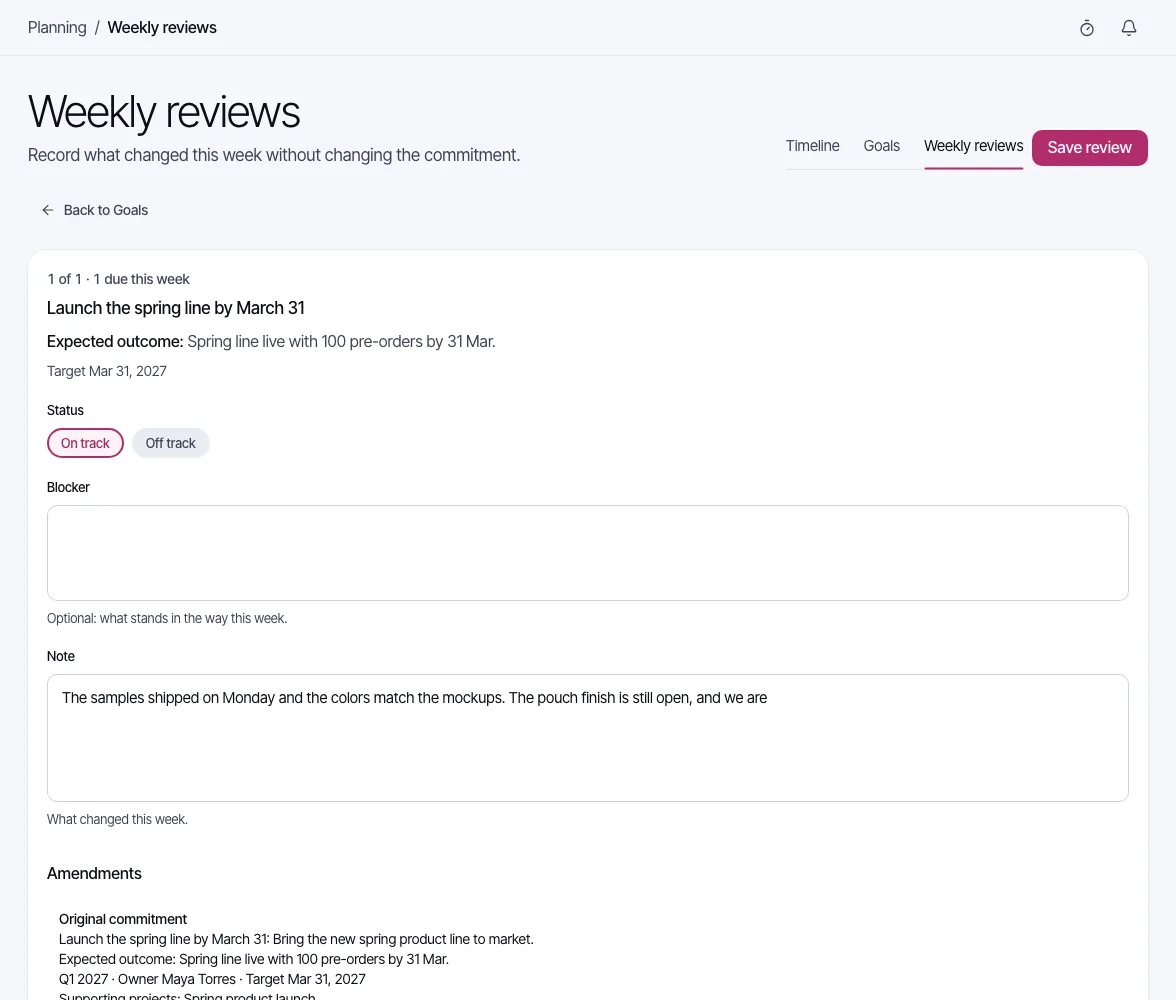
You can review the same Goal again in a week you have already covered; the page says "Reviewed this week. You can add another assessment."
For a workspace Goal, a Start meeting notes button appears after you save. It opens the Team Inbox composer, so you can write up meeting notes.
Only the accountable owner can submit a review. Everyone else who can see the Goal reads the reviews in the Weekly reviews list on the Goal page.
Tip: A review changes nothing about the Goal. If the target date, owner or supporting projects need to change, use an amendment.
Amendments#
Once a Goal is committed, its title, objective and expected outcome stay fixed. You can still propose a change to the owner, the target date or the supporting projects. Each proposal is recorded with a reason, so the Goal keeps a history of every change.
- Open the Goal and find Amendments. Original commitment shows what was first committed.
- Click Propose amendment.
- For a workspace Goal, pick a New owner if the owner changes.
- Set the New target date. It must stay inside the quarter the Goal was committed in.
- To change the projects, tick Change supporting projects and choose them.
- Write the Reason (required, up to 2000 characters).
- Click Submit proposal. A proposal that changes nothing is refused.
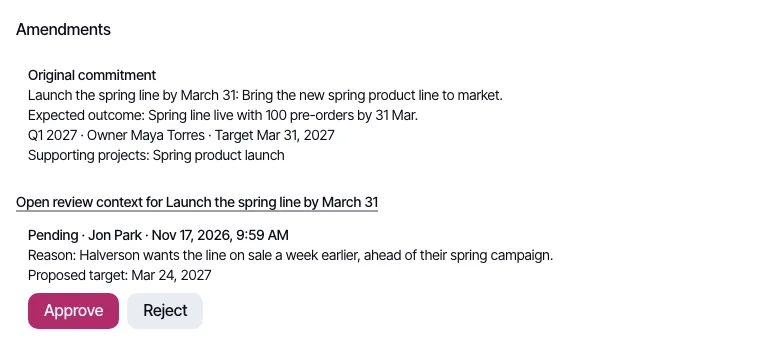
A Goal can hold one pending proposal at a time. The person who decides sees the proposal with Approve and Reject buttons. The history lists each amendment as Pending, Approved or Rejected, with who proposed it, when, the reason and who decided.
Who decides depends on where the Goal lives:
- On a personal Goal, you propose and you decide.
- On a workspace Goal, any member who is not a guest can propose, and an admin decides.
A dropped Goal takes no new amendment and can't be approved. Reject stays available to clear a proposal that was left pending.
Note: A committed Goal blocks moving one of its projects to another workspace. Propose an amendment that takes the project off the Goal first. See Moving projects.
Check the evidence#
Before you write a review, open the Goal page and read Delivery progress: each supporting project's health, its next milestones and its recently completed tasks. Click Refresh progress to reload it. See Plan the quarter with a Goal for the full card.
Workspace Goals settings#
Workspace admins decide how many Goals a workspace commits each quarter. The first time, the workspace owner turns Goals on.
- Open the workspace page and find the Owner settings card, which only the owner sees. It opens the Workspace Goals page. Once the workspace has a Goal, admins can also open the ⋯ menu on its group on the Goals page and click Manage Goals.
- Tick Enable workspace Goals.
- Set the Workspace maximum (3 to 7, default 3) and the Per-owner maximum (1 to 3, default 1).
- Click Save limits.
Lowering the maximums keeps commitments already made. Committed, won and dropped Goals all count toward a quarter. If you are not an admin, the page reads "Workspace settings are available to admins."