
My work
Today, Upcoming, Waiting and Assigned to me gather the tasks on your plate, with a summary column beside them and tools for work that slipped.
My work gathers the tasks on your plate across every project into four tabs, with the tools for slipped work beside the list. Open My work in the left rail. It opens on Today. Press G then M from anywhere to return.
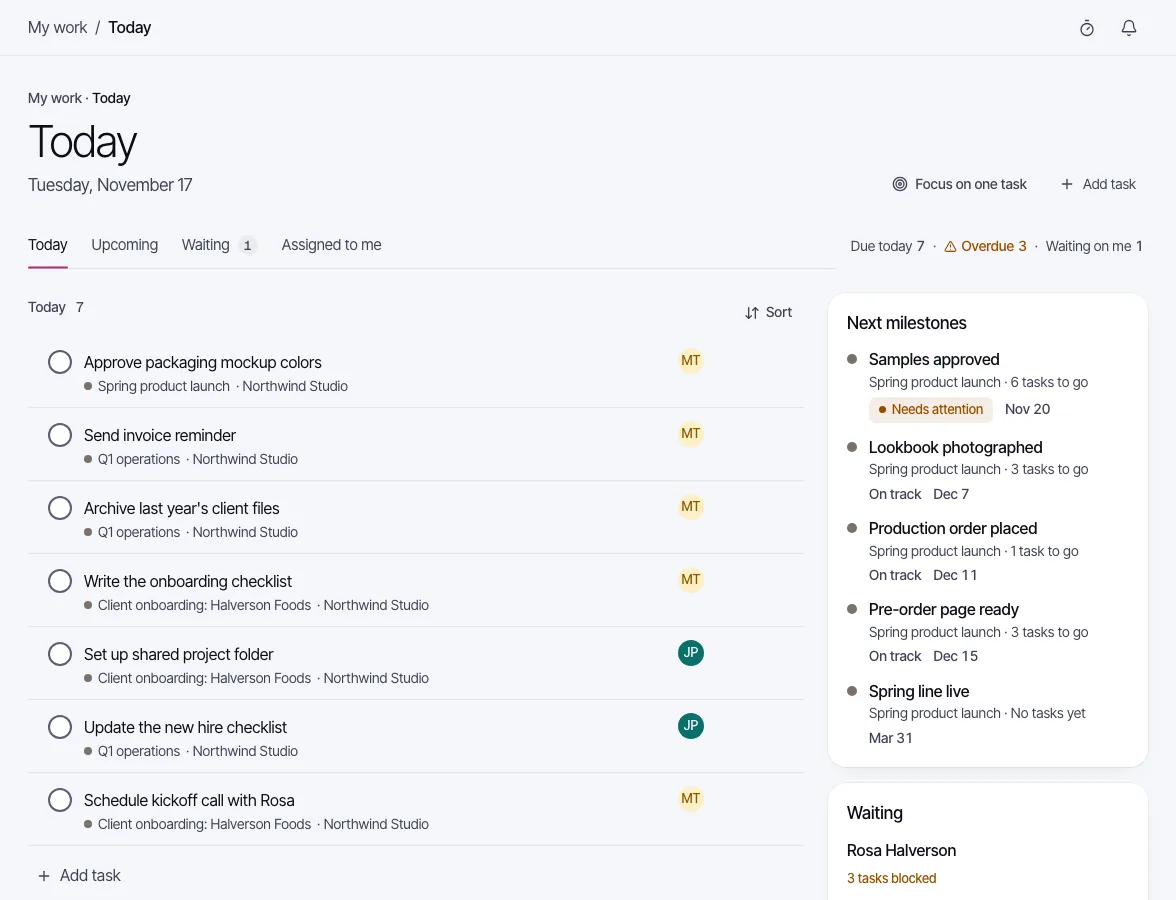
The header and the summary strip#
The header shows the tab's name, today's date in your date format, Add task and Focus on one task. Add task opens Quick Add, and on Today it starts with the due date set to today. Focus on one task has its own page. On a phone both buttons show only an icon.
Under the title sit the tabs Today, Upcoming, Waiting and Assigned to me. Beside them on a wide window, a strip reads "Due today", "Overdue" and "Waiting on me", each with a count and each a link to its list.
What Today lists#
Today lists every open task due today. It draws on your own projects, on team projects you show on My work, and on tasks assigned to you anywhere.
- Sort opens the menu described under Sort and group a list, below. Today starts on Day order with no grouping.
- When everything is done, Today says Day cleared. and how many tasks are due tomorrow.
- If you add a task dated today from Today and it will not appear there, because it lands in a team project that is not shown in your Today and is not assigned to you, the toast says "Added to <project>. It isn't assigned to you, so it's not on your Today." See Show in my Today below.
Up to three cards can appear below the list when they have something to show.
Urgent attention#
Tasks with a hard deadline that is today or has passed, and today's tasks held by an unfinished prerequisite. Each line says why, for example "Deadline today" or "Blocked today". Past five lines, Show N more opens the rest. A task already late by its due date appears once, under Overdue.
Overdue#
Open tasks whose due date has passed, oldest first. The first ten show, and Show N more reveals the rest. The card says every move here can be undone. Its toolbar holds the slipped-work tools:
- Reschedule to today moves every overdue task to today, and Pick date moves them all to a day you choose.
- Re-plan N tasks shows one task at a time under "Give it a new date", with Today, Tomorrow, Next week or a date picker. Do them all tomorrow handles the rest at once.
- Archive stale asks for an age of 14, 30, 60 or 90 days, says how many tasks match, and archives only after you press Archive N tasks. Restore them from Archive, under Tasks.
- Group by project splits the list by project and is remembered on this device.
Each row also has Today, Tomorrow and Next week buttons. The bulk tools act only on tasks you can change.
Upcoming deadlines#
Hard deadlines in the next 7 days, folded by default. Press Review N upcoming deadlines to open it. Tasks already on Today or Overdue are marked as listed there.
Note: The in-app Help calls this part of Today "Needs attention". The page itself draws Urgent attention, Overdue and Upcoming deadlines.
Upcoming#
Upcoming spreads your dated tasks over the days ahead. It starts today and leaves out overdue work.
- Choose a Range: Today, Week, Month, 3 months, 6 months or 1 year. Week is the default, and your choice is remembered on this device.
- Page with the arrow buttons and return with Today.
- Press Add in a day to add a task dated that day.
- Drag a task to another day to reschedule it. A toast says Task rescheduled. with Undo.
Week draws seven day columns on a wide window and a list of days on a narrow one. The 3 months, 6 months and 1 year ranges group tasks by week or month, and dragging is off there. The Focused and Full switch sets how much each card shows. For a calendar of one project's tasks, see Project views.
Sort and group a list#
Today, Assigned to me, the page of a label and the results page of a filter each have a Sort button in the list's header. It opens the Sort and group menu:
- Sort by: Date, Priority, Name, Date added and Assignee. Today adds Day order, which lists tasks with no time first and the rest by time of day.
- Group by: None, Date, Priority, Label, Project and Assignee. Each group gets a heading you can fold, with its count. A task with several labels sits under its first label, and the groups called No date, No label and Unassigned come last.
The other pages start on Date added with no grouping. Your choices reset when you leave the page.
Waiting and Assigned to me#
Waiting shows held tasks. Waiting on me lists tasks that need your action, Waiting on others lists your tasks held by another person, and All lists every hold. In All, each blocker is a card, and its "N tasks blocked" line opens the held tasks. Nudge appears when a card names a prerequisite task or a waiting entry names a person. It opens the blocking task, or the held task for a named person, so you can leave a comment. Clear removes a waiting entry. Recording what a task waits on needs Pro or a Team seat.
Assigned to me#
Assigned to me lists open tasks assigned to you in any project you can read, whoever created them. Assigning a task needs a project with someone else on it, and workspace guests cannot be assigned.
Each row names its project, and a parent task has one row with its subtasks folded under a "N subtasks" button. The header has the Focused and Full switch and the Sort menu. In Focused, the list shows the first five rows and a Show all N button for the rest. See Read a task row.
A line at the foot says that Today and Upcoming also list unassigned tasks from the projects you show in My work. With nothing assigned, the list says "Nothing assigned to you."
The summary column#
Home, the page the Yipadoo logo opens, is this page on its Today tab. A column of small cards stands beside the list on a wide window and below it on a narrow one. By default it holds Next milestones, Waiting (only while someone is waiting) and Workload (only with a Team plan or beta access, or a member or admin seat in a workspace that runs on Team, and only while work is due this week or a week is overloaded). You can add Timer stats and This week's completed tasks. The column never shows more than three.
Press Customize to reorder cards with the arrows, remove one with the X, or add one under Add a module, then press Done customizing. A workspace admin can set a starting layout for new members from the same place.
What each card shows is on Home and the summary cards.
Show in my Today#
In a team project, open the ⋯ menu in the project header and switch Show in my Today on or off. It decides whether that project's tasks reach your Today, Upcoming and saved filters. Tasks assigned to you always show. Guests do not see the switch.